USB 驱动安装与端口设置USB Driver Installation and Port Settings
本章分两大部分。前半部分讲 USB 驱动的安装:先确认 PC 与电缆条件,在 Windows 10(或 Windows 11 上装 Windows 10 版驱动)里运行安装向导,安装完成后到「Device Manager」确认端口连接与 COM 端口号;随后给出 COM 端口号的查看与手动修改方法、卸载旧版驱动的步骤,以及音频方面的注意事项。后半部分来自原厂《USB Port Setting Reference》,讲清「DTR」与「RTS」到底是什么、USB 端口与 [REMOTE] 插孔之间的 Link 设置如何影响波特率,以及最令人困惑的问题——为什么一个物理 USB 端口会被识别成两个虚拟 COM 端口,以及如何查出每个 COM 端口对应的是 USB 1 还是 USB 2。
This chapter has two parts. The first covers USB driver installation: confirming the PC and cable requirements, running the installation wizard under Windows 10 (or the Windows 10 driver on Windows 11), and then confirming the port connection and COM port number in Device Manager; it also gives the procedure for viewing and manually changing the COM port number, the steps for uninstalling an older driver, and the audio considerations. The second part comes from Icom's "USB Port Setting Reference". It explains what "DTR" and "RTS" actually are, how the Link setting between the USB port and the [REMOTE] jack affects the bit rate, and why one physical USB port is recognized as two virtual COM ports — including how to find out whether a given COM port is USB 1 or USB 2.
20-1USB 驱动安装(Windows 10 / 11)USB Driver Installation (Windows 10 / 11)
概述OVERVIEW
用 USB 电缆把 Icom 电台连接到 PC 上即可完成设置。请在安装 USB 驱动之前先阅读本安装指南。
You can set up an Icom radio by connecting it to a PC through a USB cable. Please read this installation guide before installing the USB driver.
- 您已经从 Icom Download Service 网站下载了最新的 USB 驱动。
https://www.icomjapan.com/support/ - PC 的操作系统为 Windows 10。
- You have already downloaded the latest USB driver from the Icom Download Service website.
https://www.icomjapan.com/support/ - The operating system of the PC is Windows 10.
安装步骤或所显示的对话框可能因操作系统而异。
The installation steps or displayed dialog may differ, depending on the operating system.
系统需求System requirements
需要下列硬件与软件:
支持 USB 3.0
The following hardware and software are required:
USB 3.0 Supported
| 项目Item | 要求Requirement |
|---|---|
| PC | 操作系统: Microsoft® Windows® 11(64 bit) Microsoft® Windows® 10(32/64 bit) Microsoft® Windows® 8.1(32/64 bit)* *「RT」版除外。Operating system: Microsoft® Windows® 11 (64 bit) Microsoft® Windows® 10 (32/64 bit) Microsoft® Windows® 8.1 (32/64 bit)* *Except for the "RT" version. |
| Port | USB 1.1、2.0 或 3.0 端口A USB 1.1, 2.0, or 3.0 port |
| Cable | 一根 USB 电缆。 按 PC 的 USB 端口选择相应插头:Type A、Type C 或 Mini-B / Type B。A USB cable. Choose the proper plug for your PC's USB port: Type A, Type C, or Mini-B / Type B. |
提示 NOTENOTE
• 对于装有上述任一操作系统的 PC 所引发的问题,Icom 概不负责。
• 若要在 Windows 11 上使用,请安装 Windows 10 版驱动。
• Icom is not responsible for problems using a PC with one of the above OSs installed.
• If you want to use it on Windows 11, please install the driver for Windows 10.
提示 NOTENOTE
• 第三方 USB 电缆的长度会影响使用,即使 PC 已经识别到电台,电台也可能无法正常工作。请使用尽可能短的电缆。
• 请根据 PC 的 USB 端口购买合适的 USB 电缆。
• 本指南以使用 Mini-B 型 USB 端口的电台为例。
• 请使用用于数据通信的 USB 电缆。只能充电的电缆无法用来设置电台。
• Depending on the length of a third party USB cable, the radio may not work correctly, even if the PC recognizes it. Use a cable that is as short as possible.
• Purchase the proper USB cable according to your PC's USB port.
• This guide is based on using a radio with a Mini-B type USB port.
• Use a USB cable for data communication. You cannot set up the radio with a cable that is made for charging only.
安装前须知(PRECAUTIONS)Precautions
安装之前Before installation
- 安装驱动时,请确认 Windows 已完成启动,然后以管理员身份登录。
- 确认没有其他程序正在运行。
- 如果您的 PC 上已安装旧版本的驱动,「Control Panel」屏幕上会显示驱动名称「Silicon Laboratories CP210x USB to UART Bridge (Driver Removal)」(如下图)。此时,请先将其卸载,再安装本驱动。
- 如果已安装更早的版本「Windows Driver Package - Silicon Laboratories Inc. (silabser) Ports」,请先手动将其卸载,再安装最新驱动。
详见第 9 页「卸载驱动」。
- When installing the driver, confirm Windows has completed its startup, and then log in as the administrator.
- Confirm no other applications are running.
- When a previous version driver is installed on your PC, the driver name "Silicon Laboratories CP210x USB to UART Bridge (Driver Removal)" is displayed on the Control Panel screen, as shown below. In this case, uninstall it before installing this driver.
- If the earlier version "Windows Driver Package - Silicon Laboratories Inc. (silabser) Ports" is installed, uninstall it manually before installing the latest driver.
See "Uninstalling the driver" on page 9 for details.
(图中显示的是 Windows 10 画面。)
(Windows 10 screen is shown.)
连接到 PC 之前Before connecting to a PC
详见第 3 页「驱动安装」。
- 驱动一旦装好,只需连接 USB 电缆即可使用 PC 软件。
- 请将电台与 PC 直接连接。通过 USB HUB 连接时若出现异常操作,Icom 概不负责。
See "Driver installation" on page 3 for details.
- Once the driver is installed, a PC software can be used by just connecting the USB cable.
- Directly connect the radio and the PC. Icom is not responsible for improper operation when connecting them through a USB hub.
重要事项Important
- 视 PC 性能(操作系统、使用环境等)而定,USB 音频可能出现中断,或 PC 软件的控制出现延迟。
- CPU 负载较重时,USB 音频很容易被中断。
- 把电台连接到 PC 之后,已安装的音频播放器的设置可能会被改变。
- Depending on your PC performance (OS, environment, and so on), the USB audio may be interrupted, or a control by the PC software may get delayed.
- If the CPU has a heavy load, the USB audio is easily interrupted.
- The settings of the installed audio player may be changed after connecting the radio to the PC.
安装之后After installation
- 卸载 USB 驱动
本 USB 驱动无法针对每一台设备单独卸载。卸载本 USB 驱动后,所有需要该驱动的电台都无法再与 PC 联机使用。 - 连接另一台电台时
设备开机后,系统会自动添加一个 COM 端口号。
- Uninstalling the USB driver
You cannot uninstall the USB driver for each individual unit. After uninstalling the USB driver, none of the radios that require this driver can be operated with the PC. - When another radio is connected
A COM port number is automatically added after turning ON the device.
关于兼容的电台About compatible radios
需要本驱动的电台型号列于 Icom 网站上。
https://www.icomjapan.com/support/
The radios that require this driver are shown on the Icom website.
https://www.icomjapan.com/support/
火腿经验 HAM TIPHAM TIP
驱动和固件都是「全局性」操作,动之前先把电台设置存到 SD 卡(Save Setting Data)。升级固件时全程勿断市电,用稳压 13.8 V 电源,笔记本用户接满电电池;升级途中绝不能断电或拔 SD 卡,否则可能变砖。养成这个习惯,装驱动、刷固件、出厂设置被误清之后都能全身而退。
Drivers and firmware are "global" operations — save your settings onto an SD card (Save Setting Data) before touching either one. Never cut the mains power during a firmware update; use a regulated 13.8 V supply, and laptop users should connect a fully charged battery. NEVER cut the power or remove the SD card during the update, or the radio may become a "brick". Get into this habit and you will come through a driver change, a firmware update, or an accidental factory reset with everything intact.
驱动安装步骤Driver installation
提示 NOTENOTE
所显示的对话框、指示或操作,因系统版本与设置不同,可能与下面的说明略有出入。
The displayed dialog, indications, or operations may differ slightly from the following instructions, depending on your system version and settings.
- 1确认电台与 PC 之间没有连接。
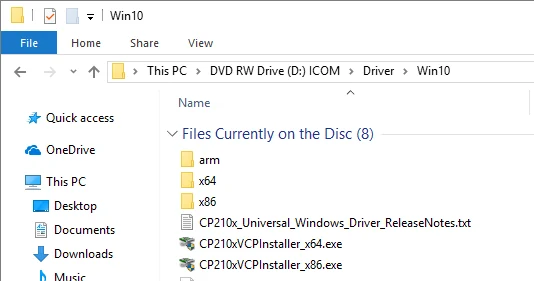
- 2双击「Win10」文件夹中的 USB 驱动安装程序。
• 如果要安装到 32 bit 版操作系统,请双击「CP210xVCPInstaller_x86.exe」。
• 如果要安装到 64 bit 版操作系统,请双击「CP210xVCPInstaller_x64.exe」。 - 3出现「User Account Control」对话框时,点击「是 / Yes」。
- 4出现安装画面时,点击「下一步 / Next」。
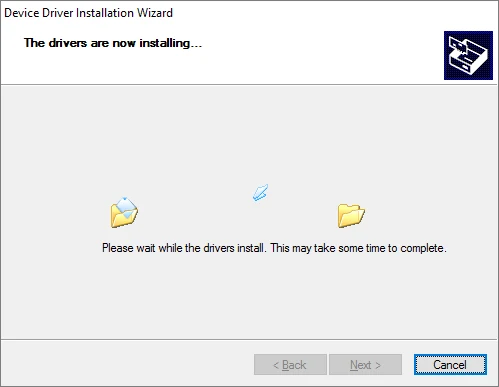
• 如果出现「License Agreement」对话框,请阅读协议,勾选「I accept this agreement」旁的单选按钮,然后点击「下一步 / Next」。 - 5Windows 开始安装驱动。
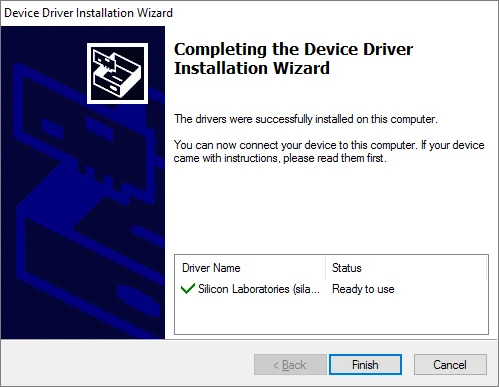
- 6安装完成后,点击「完成 / Finish」。
- 1Confirm that the radio and PC are not connected.
- 2Double-click the USB driver installer in the "Win10" folder.
• If you want to install to the 32 bit version OS, double-click "CP210xVCPInstaller_x86.exe."
• If you want to install to the 64 bit version OS, double-click "CP210xVCPInstaller_x64.exe." - 3When the "User Account Control" dialog is displayed, click <Yes>.
- 4When the install screen is displayed, click <Next>.
• If the "License Agreement" dialog is displayed, read the agreement, and click the radio button next to "I accept this agreement," and then click <Next>. - 5Windows starts installing the driver.
- 6After the installation has completed, click <Finish>.
提示 NOTENOTE
• 在 USB 驱动安装完成之前,绝不要(NEVER)在电台与 PC 之间连接 USB 电缆。若已连接,请在开始安装 USB 驱动之前先拔掉电缆。
• 本 USB 驱动不支持自动识别系统。
• NEVER connect the USB cable between the radio and the PC until AFTER the USB driver has been installed. Disconnect the cable, if connected, before starting the USB driver installation.
• This USB driver is not supported by the automatic recognition system.
7如下图所示,在电台与 PC 之间连接 USB 电缆,然后打开电台电源。
• 请确认 USB 电缆插头的形状。
7Connect the USB cable between the radio and the PC, as shown below. Then, turn ON the radio's power.
• Confirm the USB cable connector shape.
8如下图所示,任务栏上会显示安装图标,随后 Windows 开始安装驱动。
• USB 音频驱动也会自动安装。
8The installation icons are displayed on the taskbar shown below, then Windows starts installing the driver.
• The USB audio driver is also automatically installed.
9驱动安装完成后,安装图标消失。
• 视系统版本与设置而定,系统可能会提示您重新启动 PC。此时请按屏幕上的提示操作。
9After the driver installation has completed, the installation icons disappear.
• Depending on your system version and settings, you may be prompted to restart the PC. In this case, follow the instructions on the screen.
图中标注:To a USB port(接到 USB 端口)、USB cable(USB 电缆)、PC、PC、Radio (Rear panel)(电台后面板)。
Figure labels: To a USB port, USB cable, PC, Radio (Rear panel).
在「Device Manager」中确认端口连接与端口号Confirming the port connection and port number in Device Manager
驱动安装完成后,请确认端口连接与端口号。
After the driver installation has been completed, confirm the port connection and port number.
10右击 Windows 图标,然后点击 [Device Manager]。
10Right-click Windows icon, and then click [Device Manager].
11在「Device Manager」屏幕上双击「Ports (COM & LPT)」。
11Double-click "Ports (COM & LPT)" on the "Device Manager" screen.
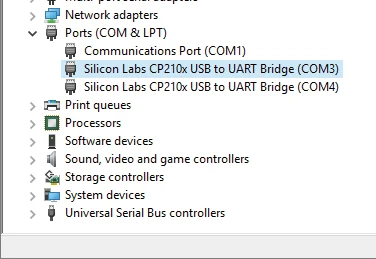
- 驱动完全安装后,会显示「Silicon Labs CP210x USB to UART Bridge (COMM)」。画面上显示的 USB 串口 COM 端口号为「3」。
- 显示的是 COM 端口号,而不是「M」。如果电台有两个 COM 端口,就会显示两个 COM 端口号。
- COM 端口号可能因 PC 环境而异。
- 如果「Device Manager」画面上出现「!」或「×」,说明驱动可能没有正确安装。这种情况下,请先卸载 USB 驱动,然后重新安装。
- When the driver is completely installed, "Silicon Labs CP210x USB to UART Bridge (COMM)" is displayed. The screen shows the USB serial COM port number "3."
- The COM port number is displayed instead of "M." If the radio has two COM ports, two COM port numbers are displayed.
- Depending on the PC environment, the COM port number may differ.
- If "!" or "×" is displayed on the "Device Manager" screen, the driver may not be properly installed. In such a case, first uninstall the USB driver, then reinstall it.
![图 20-4 右击 Windows 开始图标并点击 [Device Manager]](https://staging.bg7bag.com/wp-content/uploads/2026/10/fig54_ud_win10b_1.webp)
火腿经验 HAM TIPHAM TIP
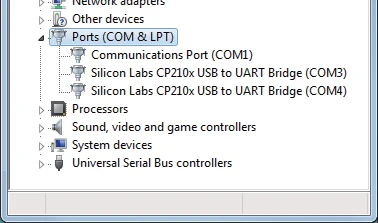
图 20-5 里那两行「Silicon Labs CP210x USB to UART Bridge (COM3)」和「(COM4)」不是故障——IC-7300 通过内置 USB HUB 接了两路串行-USB 转换电路,所以一个物理 USB 端口在 PC 上会被认成两个 COM 端口。只有其中一路真正接到了 CPU 的 CI-V 线上,能受 DTR/RTS 控制、用于 CI-V 遥控;另一路只能发音频。用设备管理器逐个试:先记下 CI-V 地址(默认 94 / E0),两个端口号都填进去试,能通的那个就是 CI-V 口。也可以按 20-5 节的方法把端口号改成好记的号码,省得每次都试。软件里的 CI-V 地址、端口设置、设置备份清单请自己抄一份存好(SD 卡存设置 + 屏幕截图存证 + 笔记本记下 CI-V 地址)。
The two entries "Silicon Labs CP210x USB to UART Bridge (COM3)" and "(COM4)" in Figure 20-5 are not a fault — the IC-7300 connects two Serial-USB converter circuits through a built-in USB HUB, so one physical USB port is recognized by the PC as two COM ports. Only one of them is actually wired to the CPU's CI-V line; it is the one controlled by DTR/RTS that works for CI-V remote control, while the other is audio only. Try them one by one in the Device Manager: note the CI-V address (94 / E0 by default) and enter it with each port number until the radio responds. You can also change the port numbers to something memorable using the procedure in Section 20-5. Keep your own written record of the CI-V address, the port settings, and the settings backup (SD card copy + screen captures + CI-V address in your notebook).
Windows 8.1 的驱动安装Driver installation under Windows 8.1
提示 NOTENOTE
所显示的对话框、指示或操作,因系统版本与设置不同,可能与下面的说明略有出入。
The displayed dialog, indications, or operations may differ slightly from the following instructions, depending on your system version and settings.
- 1确认电台与 PC 之间没有连接。
- 2双击「Win7_81_10」文件夹中的 USB 驱动安装程序。
• 如果要安装到 32 bit 版操作系统,请双击「CP210xVCPInstaller_x86.exe」。
• 如果要安装到 64 bit 版操作系统,请双击「CP210xVCPInstaller_x64.exe」。 - 3出现「User Account Control」对话框时,点击「是 / Yes」。
- 4出现安装画面时,点击「下一步 / Next」。
- 5出现「License Agreement」对话框。请阅读协议,勾选「I accept this agreement」旁的单选按钮,然后点击「下一步 / Next」。
- 6Windows 开始安装驱动。
- 7安装完成后,点击「完成 / Finish」。
- 1Confirm that the radio and PC are not connected.
- 2Double-click the USB driver installer in the "Win7_81_10" folder.
• If you want to install to the 32 bit version OS, double-click "CP210xVCPInstaller_x86.exe."
• If you want to install to the 64 bit version OS, double-click "CP210xVCPInstaller_x64.exe." - 3When the "User Account Control" dialog is displayed, click <Yes>.
- 4When the install screen is displayed, click <Next>.
- 5The "License Agreement" dialog is displayed. Read the agreement, and click the radio button next to "I accept this agreement," and then click <Next>.
- 6Windows starts installing the driver.
- 7After the installation has completed, click <Finish>.
提示 NOTENOTE
• 在 USB 驱动安装完成之前,绝不要(NEVER)在电台与 PC 之间连接 USB 电缆。若已连接,请在开始安装 USB 驱动之前先拔掉电缆。
• 本 USB 驱动不支持自动识别系统。
• NEVER connect the USB cable between the radio and the PC until AFTER the USB driver has been installed. Disconnect the cable, if connected, before starting the USB driver installation.
• This USB driver is not supported by the automatic recognition system.
7如下图所示,在电台与 PC 之间连接 USB 电缆,然后打开电台电源。
• 请确认 USB 电缆插头的形状。
7Connect the USB cable between the radio and the PC, as shown below. Then, turn ON the radio's power.
• Confirm the USB cable connector shape.
8如下图所示,任务栏上会显示安装图标,随后 Windows 开始安装驱动。
• USB 音频驱动也会自动安装。
8The installation icons are displayed on the taskbar shown below, then Windows starts installing the driver.
• The USB audio driver is also automatically installed.
9驱动安装完成后,安装图标消失。
• 视系统版本与设置而定,系统可能会提示您重新启动 PC。此时请按屏幕上的提示操作。
9After the driver installation has completed, the installation icons disappear.
• Depending on your system version and settings, you may be prompted to restart the PC. In this case, follow the instructions on the screen.
图中标注:To a USB port(接到 USB 端口)、USB cable(USB 电缆)、PC、PC、Radio (Rear panel)(电台后面板)。
Figure labels: To a USB port, USB cable, PC, Radio (Rear panel).
- 10点击任务栏上的文件夹图标。
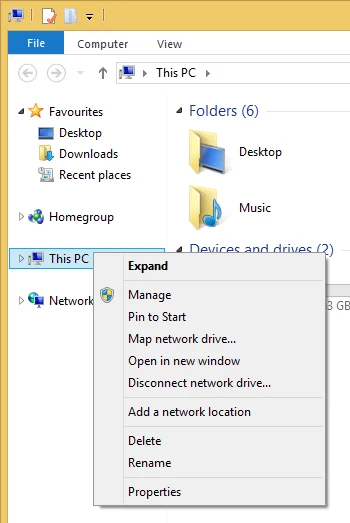
- 11右击「This PC」,然后点击「Properties」。
- 12点击 [Device Manager]。
• 此时显示「Device Manager」画面。 - 13在「Device Manager」屏幕上双击「Ports (COM & LPT)」。
- 驱动完全安装后,会显示「Silicon Labs CP210x USB to UART Bridge (COMM)」。画面上显示的 USB 串口 COM 端口号为「3」。
- 显示的是 COM 端口号,而不是「M」。如果电台有两个 COM 端口,就会显示两个 COM 端口号。
- COM 端口号可能因 PC 环境而异。
- 如果「Device Manager」画面上出现「!」或「×」,说明驱动可能没有正确安装。这种情况下,请先卸载 USB 驱动,然后重新安装。
- 10Click the folder icon on the taskbar.
- 11Right-click "This PC," and then click "Properties."
- 12Click [Device Manager].
• The "Device Manager" screen is displayed. - 13Double-click "Ports (COM & LPT)" on the "Device Manager" screen.
- When the driver is completely installed, "Silicon Labs CP210x USB to UART Bridge (COMM)" is displayed. The screen shows the USB serial COM port number "3."
- The COM port number is displayed instead of "M." If the radio has two COM ports, two COM port numbers are displayed.
- Depending on the PC environment, the COM port number may differ.
- If "!" or "×" is displayed on the "Device Manager" screen, the driver may not be properly installed. In such a case, first uninstall the USB driver, then reinstall it.
参考(FOR YOUR REFERENCE)For your reference
COM 端口设置COM Port setting
要修改 COM 端口号设置,请先在驱动安装完成之后把电台连接到 PC,然后打开电台电源。
To change the COM Port number setting, connect the radio to the PC and then turn ON the radio power after the driver installation has been completed.
- 1右击 Windows 图标,然后点击 [Device Manager]。
- 2右击「Silicon Labs CP210x USB to UART Bridge (COMM)」,然后点击「Properties」。
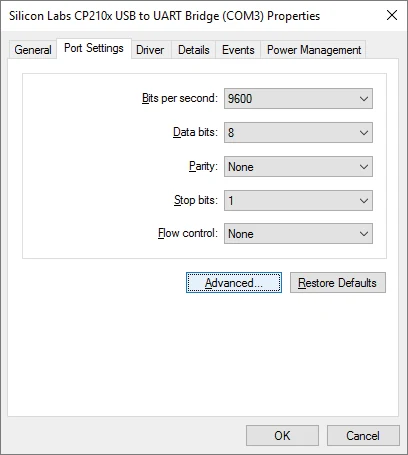
显示的是 COM 端口号,而不是「M」。如果电台有两个 COM 端口,就会显示两个 COM 端口号。 - 3点击 [Port Settings] 选项卡,然后点击「高级 / Advanced...」。
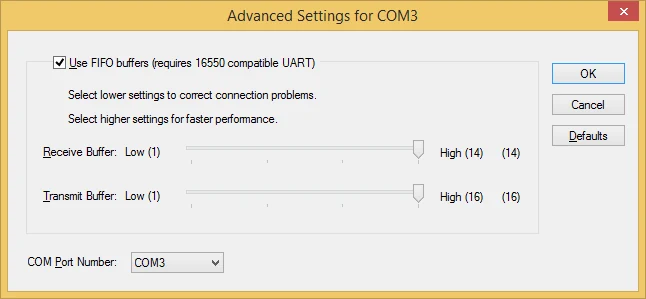
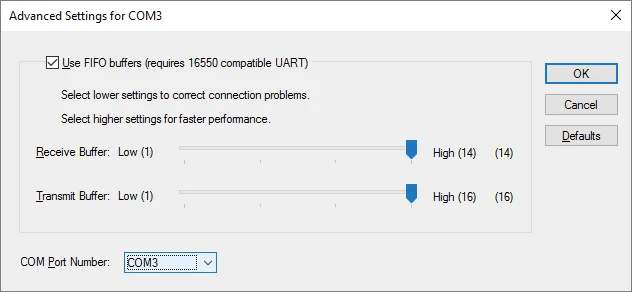
- 4选择 COM 端口号,然后点击「确定 / OK」。
- 5点击「确定 / OK」关闭画面。
- 1Right-click Windows icon, and then click [Device Manager].
- 2Right-click "Silicon Labs CP210x USB to UART Bridge (COMM)" and then click "Properties."
The COM port number is displayed instead of "M." If the radio has two COM ports, two COM port numbers are displayed. - 3Click the [Port Settings] tab, then click <Advanced...>.
- 4Select the COM port number, then click <OK>.
- 5Click <OK> to close the screen.
| 项目Item | 对话框中的显示值Value shown in the dialog |
|---|---|
| Bits per second | 9600默认:96009600 Default: 9600 |
| Data bits | 8默认:88 Default: 8 |
| Parity | None默认:NoneNone Default: None |
| Stop bits | 1默认:11 Default: 1 |
| Flow control | None默认:NoneNone Default: None |
- 1点击任务栏上的文件夹图标。
- 2右击「This PC」,然后点击「Properties」。
- 3点击 [Device Manager]。
• 此时显示「Device Manager」画面。 - 4右击「Silicon Labs CP210x USB to UART Bridge (COMM)」,然后点击「Properties」。
显示的是 COM 端口号,而不是「M」。如果电台有两个 COM 端口,就会显示两个 COM 端口号。 - 5点击 [Port Settings] 选项卡,然后点击「高级 / Advanced...」。
- 6选择 COM 端口号,然后点击「确定 / OK」。
- 7点击「确定 / OK」关闭画面。
- 1Click the folder icon on the taskbar.
- 2Right-click "This PC," and then click "Properties."
- 3Click [Device Manager].
• The "Device Manager" screen is displayed. - 4Right-click "Silicon Labs CP210x USB to UART Bridge (COMM)" and then click "Properties."
The COM port number is displayed instead of "M." If the radio has two COM ports, two COM port numbers are displayed. - 5Click the [Port Settings] tab, then click <Advanced...>.
- 6Select the COM port number, then click <OK>.
- 7Click <OK> to close the screen.
![图 20-9 点击 [Port Settings] 选项卡后点击 <Advanced...>](https://staging.bg7bag.com/wp-content/uploads/2026/10/fig56_ud_taskbar_1.webp)
PC 与电台连接之后,就可以使用 CI-V 指令对电台进行遥控。
After the PC and radio are connected, you can remotely control the radio using the CI-V commands.
本机具备 USB 与串行(Serial)之间的转换功能。因此,只要用 USB 电缆把电台连接到 PC,Icom Communications Interface-V(CI-V)操作就不再需要 CT-17。
The radio has a conversion function between USB and Serial. So, if the radio is connected to a PC with the USB cable, the CT-17 is not required for the Icom Communications Interface-V (CI-V) operation.
[USB] 端口与 [REMOTE] 插孔可以同时使用。因此,即使有 Icom 的 CI-V 产品(例如收发信机、接收机或线性放大器(IC-PW1/EURO))接在您电台的 [REMOTE] 插孔上,仍然可以用 PC 进行 CI-V 操作。
The [USB] port and [REMOTE] jack can simultaneously be used. So CI-V operation can be done from a PC, even if an Icom CI-V product, such as a transceiver, a receiver, or a linear amplifier (IC-PW1/EURO), is connected to the [REMOTE] jack of your radio.
卸载驱动Uninstalling the driver
提示 NOTENOTE
所显示的对话框或指示,因系统版本与设置不同,可能与下面的说明略有出入。
The displayed dialogs or indications may differ slightly from the following instructions, depending on your system version and settings.
- 1点击任务栏上的 Windows 图标,然后点击 Setting(设置)图标。
- 2点击 [Apps](应用)。
- 3点击「Windows Driver Package - Silicon Laboratories Inc. (silabser) Ports (05/07/2018 10.1.2.2115)」。
- 4点击「<Uninstall>(卸载)」。
• 出现「User Account Control」对话框时,点击「<Continue>(继续)」。 - 5按屏幕上的提示完成卸载。
- 1Click the Windows icon on the taskbar, then click the Setting icon.
- 2Click [Apps].
- 3Click "Windows Driver Package - Silicon Laboratories Inc. (silabser) Ports (05/07/2018 10.1.2.2115)."
- 4Click <Uninstall>.
• When the "User Account Control" dialog is displayed, click <Continue>. - 5Follow the instructions on the screen to uninstall.
- 1把鼠标指针移到桌面右下角附近。
• 此时桌面右侧会显示 charms(超级按钮)。 - 2点击「Settings」charm。
- 3点击「Control Panel」。
- 4点击「Uninstall a program」。
• 此时显示「Uninstall or Change a Program」菜单。 - 5双击「Windows Driver Package - Silicon Laboratories Inc. (silabser) Ports (09/27/2017 6.7.5.1893)」。
• 出现「User Account Control」对话框时,点击「<Continue>(继续)」。 - 6按屏幕上的提示完成卸载。
- 1Point the mouse pointer around the right-bottom corner of the desktop.
• The charms are displayed on the right of the desktop. - 2Click the "Settings" charm.
- 3Click "Control Panel."
- 4Click "Uninstall a program."
• The "Uninstall or Change a Program" menu is displayed. - 5Double-click "Windows Driver Package - Silicon Laboratories Inc. (silabser) Ports (09/27/2017 6.7.5.1893)."
• When the "User Account Control" dialog is displayed, click <Continue>. - 6Follow the instructions on the screen to uninstall.
提示 NOTENOTE
卸载本 USB 驱动后,所有需要该驱动的 Icom 电台都无法再与 PC 联机使用。
After uninstalling this USB driver, none of the Icom radios that require it can be operated with the PC.
音频方面的注意事项Audio considerations
[已安装的音频播放器](Windows 标准软件等)
[Installed audio player] (Windows standard software, and so on.)
要用 PC 作为调制输入源,必须把电台的 USB 端口设置为调制输入源接口。调制输入源接口可在电台的 SET 模式中设置,也可使用 CI-V 系统设置。详情请参阅您所用电台的使用说明书。
For modulation input from the PC, the radio's USB port must be set as the modulation input source connector. You can set the modulation input source connector in the radio's Set mode, or using the CI-V system. See the instruction manual of your radio for details.
如果要用 PC 的扬声器监听接收到的音频,或用 PC 麦克风的音频作为调制输入,请参阅您所用音频软件的使用说明书。
If you monitor the received audio through the PC's speaker, or use the audio from the PC's microphone as the modulation input, see the instruction manual of your audio software.
Icom、Icom Inc. 及 Icom 标识是 Icom Incorporated(日本)在日本、美国、英国、德国、法国、西班牙、俄罗斯、澳大利亚、新西兰及/或其他国家的注册商标。Microsoft 与 Windows 是 Microsoft 集团公司的商标。所有其他产品或品牌均为其各自持有者的注册商标或商标。
A7093-1EX-3 © 2013–2021 Icom Inc. 2021 年 10 月
Icom, Icom Inc. and the Icom logo are registered trademarks of Icom Incorporated (Japan) in Japan, the United States, the United Kingdom, Germany, France, Spain, Russia, Australia, New Zealand, and/or other countries. Microsoft and Windows are trademarks of the Microsoft group of companies. All other products or brands are registered trademarks or trademarks of their respective holders.
A7093-1EX-3 © 2013–2021 Icom Inc. Oct.2021
20-2USB 端口设置参考(USB Port Setting Reference)USB Port Setting Reference
参考手册 —— USB 端口设置提示 —— 版本 1.0 —— 2016 年 3 月 —— RMX-USB_PORT_SETTING-ENG-V1.0
Reference MANUAL — Tips for the USB port settings — Version 1.0 — March 2016 — RMX-USB_PORT_SETTING-ENG-V1.0
前言Preface
直到最近,用 RTTY 操作时都必须调整 PC 的数据输出以符合收发信机的规格,因为收发信机不能直接接收 PC 的 COM 端口所输出的信号。因此,您需要在收发信机与 PC 之间使用接口单元,由接口单元来调整信号电平或信号格式。
Until recently, it has been necessary to change your PC data output to fit your transceiver's specifications when you operate RTTY. This is because the transceiver does not directly accept signals output from the PC's COM port. Therefore, you needed to use an interface unit between the transceiver and your PC. The interface unit adjusted the signals levels or signal format.
现在,某些 Icom 收发信机已经内置 RTTY 模式,仅用 Icom 收发信机本身就可以操作这些模式。不过,也有用户通过 USB 电缆把 PC 连上,以便与其他软件程序同步。
Now, certain Icom transceivers have built-in RTTY mode. You can simply operate the modes with only your Icom transceiver itself. However, some users operate those modes with their PC connected through a USB cable to synchronize with other software applications.
要用 USB 电缆把 Icom 收发信机连接到 PC,既不必考虑信号电平或信号格式,也不必用接口单元来连接两者。因此连接变得非常简单。
To connect between your Icom transceiver and PC through a USB cable, you do not need to think of signal level or signal format, and you do not need an interface unit to connect both units. Therefore, the connection becomes very simple.
USB 端口不仅用于 RTTY 和记录软件的运行,还用于从 PC 用 CI-V 指令遥控收发信机、向存储器写入内容,以及使用 Icom 可选克隆软件进行设置。
The USB port is used not only for RTTY and logging software operation, but also to remotely control the transceiver from a PC using the CI-V commands, to enter content into memory and to make settings using optional Icom cloning software.
本文档说明若干 USB 端口设置。
This document describes certain USB port settings.
- IC-7100
- IC-7300
- IC-7850/IC-7851(下文统称 IC-7851)
- IC-9100
- IC-7100
- IC-7300
- IC-7850/IC-7851 (Referred to as the IC-7851)
- IC-9100
请注意,把上述收发信机连接到 PC 需要安装 USB 驱动。用于 Microsoft® Windows® PC 的 USB 驱动可从我们的网站下载:
http://www.icom.co.jp/world/support/download/firm/
Note that a USB driver installation is required to connect the above transceivers to your PC. The USB driver for Microsoft® Windows® PC can be downloaded from our website at:
http://www.icom.co.jp/world/support/download/firm/
关于下载 USB 驱动的详情,请参阅您所用收发信机的使用说明书;关于安装驱动,请参阅 USB 驱动安装指南。
Refer to your transceiver's instruction manual for details on downloading the USB driver, and refer to the USB driver installation guide about installing the driver.
本文档仅说明 PC 或网络设置的概念。有关 PC、软件或网络的设置,请参阅您的 PC 或软件说明书,或联系相应的支持中心。请注意,Icom 无法为您的 PC、软件、网络及其正确设置提供支持。
This document describes only the concept of PC or network settings. Refer to your PC or software manual, or contact to their respective support center about the PC, software, or network settings. Please note that Icom cannot provide support for your PC, software, network or their proper settings.
本指南的修订
Icom 保留在任何时候不经通知、不承担义务地修改本指南内容的权利。
Guide Revisions
Icom reserves the right to make changes to the content of this guide at any time without notice or obligation.
商标/版权
Icom、Icom Inc. 及 Icom 标识是 Icom Incorporated(日本)在日本、美国、英国、德国、法国、西班牙、俄罗斯、澳大利亚、新西兰及/或其他国家的注册商标。Microsoft 与 Windows 是 Microsoft Corporation 在美国及/或其他国家的注册商标或商标。所有其他商标均为其各自持有者的财产。
© 2016 Icom Inc.
Trademarks/Copyright
Icom, Icom Inc. and the Icom logo are registered trademarks of Icom Incorporated (Japan) in Japan, the United States, the United Kingdom, Germany, France, Spain, Russia, Australia, New Zealand, and/or other countries. Microsoft and Windows are either registered trademarks or trademarks of Microsoft Corporation in the United States and/or other countries. All other trademarks are the properties of their respective holders.
© 2016 Icom Inc.
SECTION 1 关于「DTR」与「RTS」SECTION 1 About "DTR" and "RTS"
适用机型:IC-7300、IC-7851(截至 2016 年 3 月)
Applicable products: IC-7300, IC-7851 (as of March 2016)
用 USB 电缆把上述 Icom 业余基站式收发信机连接到 PC,并运行 RTTY 或记录软件时,请在收发信机 SET 模式的「USB SEND」「USB Keying (CW)」「USB Keying (RTTY)」设置项目中,把每项指定为「DTR」或「RTS」。
When connecting the above Icom amateur base transceivers to a PC using a USB cable, and operating an RTTY or logging software application, set either the "DTR" or the "RTS" items in the transceiver Set mode settings of "USB SEND," "USB keying (CW)," and "USB keying (RTTY)."
本节说明如何设置这些项目。
This section describes how to set these items.
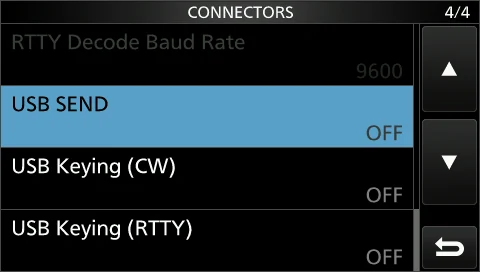
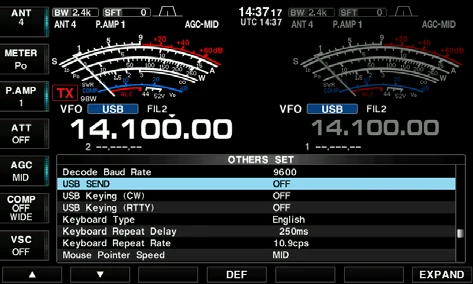
DTR 是 Data Terminal Ready(数据终端就绪)的缩写,RTS 是 Request To Send(请求发送)的缩写。它们源自 RS-232C 标准——该标准是控制信号线的统一标准。
DTR stands for Data Terminal Ready, and RTS stands for Request To Send. They originated from the RS-232C standard, which is a unified standard for the control signal line.
PC 通过 RS-232C 端口或声卡的 DTR、RTS 端子送出的 SEND 与 CW/RTTY 键控信号,被送到收发信机的 ACC 插座上。在某些带 RS-232C 端口的收发信机上,这些信号是通过 RS-232C 电缆,直接取自 PC 的 RS-232C 端口上的 DTR 与 RTS 端子的。
The SEND and CW/RTTY keying signals from the PC through the DTR and RTS terminals of the RS-232C port or the sound card are applied to the ACC socket on the transceiver. On some transceivers with an RS-232C port, these signals are directly applied from the DTR and RTS terminals on the PC's RS-232C port through an RS-232C cable.
图中标注(图 1-3 RS-232C 连接器针脚分配(DB9)):1 DCD、2 RTS、3 RXD、4 DSR、5 TXD、6 DTR、7 RI、8 GND、9 CTS;Output signals to the RS-232C connector(输出到 RS-232C 连接器的信号);Software operation(软件动作);Mark(标记);Space(空格);RX;TX;DTR;RTS。
*当 SEND 分配给 RTS 端子、RTTY 键控分配给 DTR 端子时。
(用于收发信机的收/发切换。)
Figure labels (Figure 1-3 RS-232C connector pin assignment (DB9)): 1 DCD, 2 RTS, 3 RXD, 4 DSR, 5 TXD, 6 DTR, 7 RI, 8 GND, 9 CTS; Output signals to the RS-232C connector; Software operation; Mark; Space; RX; TX; DTR; RTS.
*When SEND is assigned to the RTS, and RTTY keying is assigned to the DTR terminals.
(Used for the transceiver's transmit and receive switching.)
| 信号名称Signal name | 含义Meaning |
|---|---|
| DCD | 载波检测Data carrier detect |
| RTS | 请求发送Request To Send |
| RXD | 接收数据Received data |
| DSR | 数据装置就绪Data set ready |
| TXD | 发送数据Transmitted data |
| DTR | 数据终端就绪Data Terminal Ready |
| RI | 振铃指示Ring indicator |
| GND | 信号地Signal ground |
| CTS | 允许发送Clear To Send |
说明 NOTENOTE
图 1-3 在上排标出针脚编号 1 至 9,下排标出上表的信号名称。此处照录图中的编号范围与信号名称;各针脚与信号的具体对应请以原厂图示为准。
Figure 1-3 shows the pin numbers 1 to 9 along the top and the signal names listed in the table above along the bottom. Only the pin-number range and the signal names are reproduced here; refer to Icom's original figure for the exact pin-to-signal correspondence.
近期的 PC 已有 USB 端口而不再有 RS-232C 端口。为了让连接与双向通信更方便,收发信机内部也内置了 USB 端口。
Recent PCs have a USB port instead of an RS-232C port. To allow an easier connection and mutual communication, a USB port is also built into the transceiver.
使用 RS-232C 通信端口时,需要 RTS、DTR 等信号线在 PC 与收发信机之间交换数据。然而 USB 端口上并没有 DTR 与 RTS 端子。
With using an RS-232C communication port, signal lines such as RTS and DTR are needed to exchange data between the PC and the transceiver. However, there are no DTR and RTS terminals on a USB port.
正如图 1-6 所示,RS-232C 的 RTS 与 DTR 端子可以在串行-USB(Serial-USB)转换器中找到。来自 [USB B] 端口的数据就在这个 Serial-USB 转换器中输出到这些端子上。
RTS and DTR terminals of the RS-232C can be found in the Serial-USB converter as shown in Figure 1-6. The data from the [USB B] port is output to these terminals in this Serial-USB converter.
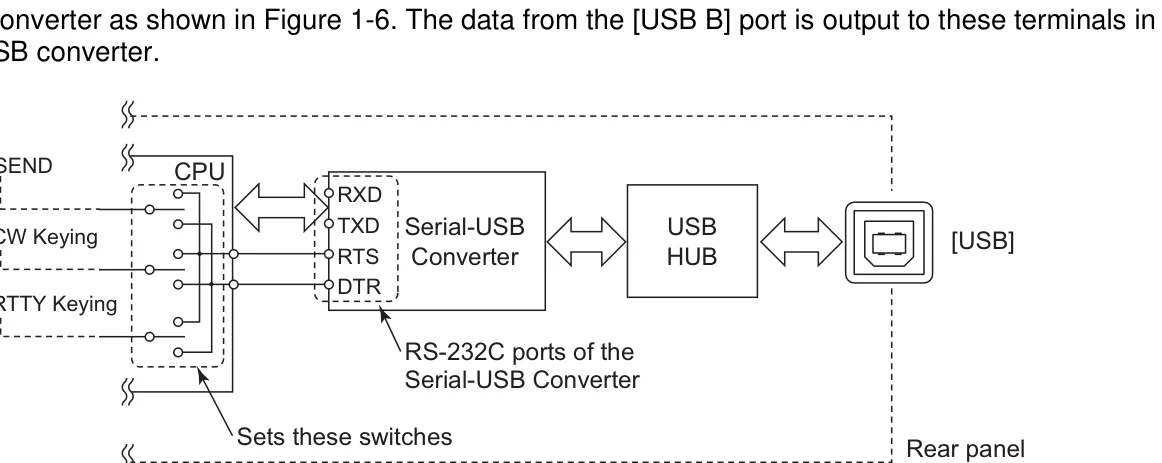
RTTY/记录软件会为 SEND 与 CW/RTTY 键控信号分别指定输出端子(RTS 或 DTR)。换句话说,是软件来设定收发信机内部 Serial-USB Converter 上 SEND 与 CW/RTTY 键控信号的输出端子。
The RTTY/logging software application sets the output terminal, either RTS or DTR, for each SEND and CW/RTTY keying signal. In other words, the software sets the SEND and CW/RTTY keying signal output terminal of the Serial-USB Converter inside the transceiver.
另一方面,收发信机 SET 模式中的「USB SEND」「USB Keying (CW)」「USB Keying (RTTY)」这三项,则分别指定从 Serial-USB Converter 的 RTS 端口还是 DTR 端口去捕捉 SEND、CW/RTTY 键控信号。(「OFF」除外)
On the other hand, the transceiver's set mode items, "USB SEND," "USB keying (CW)," and "USB keying (RTTY)," selects either the RTS or DTR port of the Serial-USB Converter to capture SEND, CW/RTTY keying signal, respectively. (Except "OFF")
因此,当收发信机的「USB SEND」「USB Keying (CW)」「USB Keying (RTTY)」与软件的 SEND、CW 键控、RTTY 键控分别设为同一个端子时,设置才会成功。
Therefore, the settings will succeed when the same terminal is set between the transceiver's "USB SEND," "USB keying (CW)," and "USB keying (RTTY)" and software's SEND, CW keying, and RTTY keying, respectively.
请注意,设置项目的名称可能因所用软件而异。例如,可能用「PTT」或「Transmit」代替「SEND」,用「FSK」代替「RTTY」。因此,请同时参照软件说明书或帮助文件,正确设置这些项目。
Note that the setting item name may differ, depending on the software being used. For example, "PTT" or "Transmit" may be used instead of "SEND," "FSK" may be used instead of "RTTY." Therefore, properly set these items by also referring to the software manual or help files.
补充说明:
「USB SEND」是用来切换收发信机收/发状态的设置项目,因此必须设定为与软件中相同的端子。如果在收发信机 SET 模式中设成了不同的端子或 OFF,软件就无法在发射与接收之间切换。
For your information:
The "USB SEND" item is a setting to switch the transceiver's transmit and receive. So, the terminal must be set to the same setting as that in the software. If a different terminal or OFF is set in the transceiver's set mode, the software cannot toggle between transmit and receive.
请注意,收发信机 CPU 内部的 USB SEND 线变为 High 时,收发信机即进入发射状态。(SEND 插座或 [ACC] 的 SEND 线所采用的是反相逻辑。)
Note that the transceiver will transmit when the USB SEND line inside the transceiver's CPU becomes High. (The transceiver transmits with the inverted logic from the SEND jack, or SEND line of [ACC].)
| 项目Item | 可选值与默认值Selectable values and default |
|---|---|
| USB SEND | OFF / DTR / RTS默认:OFFOFF / DTR / RTS Default: OFF |
| USB Keying (CW) | OFF / DTR / RTS默认:OFFOFF / DTR / RTS Default: OFF |
| USB Keying (RTTY) | OFF / DTR / RTS默认:OFFOFF / DTR / RTS Default: OFF |
| RTTY Decode Baud Rate | 9600默认:96009600 Default: 9600 |
| CI-V USB Port | Link to [REMOTE] / Unlink to [REMOTE]默认:Link to [REMOTE]Link to [REMOTE] / Unlink to [REMOTE] Default: Link to [REMOTE] |
| CI-V USB Baud Rate | Auto默认:AutoAuto Default: Auto |
SECTION 2 USB 端口与 [REMOTE] 插孔之间的链路设置SECTION 2 About link setting for between USB port and REMOTE jack
适用机型:IC-7300、IC-7851(截至 2016 年 3 月)
Applicable products: IC-7300, IC-7851 (as of March 2016)
在上述 Icom 业余基站式收发信机中,您可以切换 USB 端口与 [REMOTE] 之间链路的 ON/OFF。对于会被识别出两个 COM 端口的收发信机,该链路设置仅对 USB1 有效。
You can switch USB port and [REMOTE] link ON and OFF in the above Icom's amateur base transceivers. In case the transceivers that two COM ports are recognized, the link setting is available for only USB1.
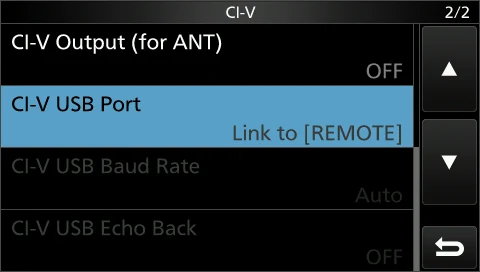
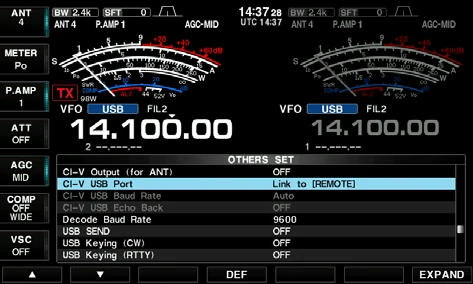
本项目的默认设置为「Link to [REMOTE]」。
The default setting of this item is "Link to [REMOTE]."
以下情况选用该设置:一是把 USB 端口处的通信数据转换为 CI-V 数据后,再从 [REMOTE] 输出控制信号以使用 Transceive 联动功能;二是使用选配件 CT-17 操作原有的遥控系统。这时 USB 端口的通信速度被限制在 19,200 bps,因为 [REMOTE] 插孔的最高通信速度就是 19,200 bps。
This setting is selected when using the Transceive function by outputting the control signal from [REMOTE] after converting the communicating data at the USB port to CI-V data, or when operating the existing remote control system with the optional CT-17. In this case, the USB port communication speed is limited to 19,200 bps because the [REMOTE] jack's maximum communication speed is 19,200 bps.
因此,除了上述情况,Icom 强烈建议设为「Unlink to [REMOTE]」。
Thus, Icom strongly recommends the setting of "Unlink to [REMOTE]" in cases other than those above.
使用「Unlink to [REMOTE]」时,USB 端口可以以最高 115,200 bps 的速度工作。
By using "Unlink to [REMOTE]," you can operate the USB port with a speed of up to 115,200 bps.
图中标注(图 2-3 USB 端口与 [REMOTE]):[USB];CPU;Serial-USB Converter(串行-USB 转换器);CI-V Converter(CI-V 转换器);USB HUB;CI-V USB Link switch(CI-V USB 链路开关);[REMOTE];Linked = 19,200 bps(链接时);Unlinked = 115,200 bps(不链接时);19,200 bps。
Figure labels (Figure 2-3 USB port and [REMOTE]): [USB]; CPU; Serial-USB Converter; CI-V Converter; USB HUB; CI-V USB Link switch; [REMOTE]; Linked = 19,200 bps; Unlinked = 115,200 bps; 19,200 bps.
| 链路状态Link state | [USB] 端口速率Bit rate on the [USB] port | [REMOTE] 插孔速率Bit rate on the [REMOTE] jack |
|---|---|---|
| Link to [REMOTE] | 19,200 bps | 19,200 bps |
| Unlink to [REMOTE] | 115,200 bps | 19,200 bps |
警告 IMPORTANTIMPORTANT
通过 USB 电缆把 RS-BA1 与 IC-7300 或 IC-7851 连接并使用频谱显示(spectrum scope)功能时,请设为「Unlink to [REMOTE]」。否则由于 USB 端口的数据传送速度不足以满足频谱显示所需的数据量,RS-BA1 的频谱显示将无法工作。
Set to "Unlink to [REMOTE]" when using the spectrum scope function of RS-BA1 with the IC-7300, or IC-7851 through a USB cable. Otherwise RS-BA1 spectrum scope will not function since the data transfer speed of the USB port is insufficient for the amount of data required by the spectrum scope.
SECTION 3 为什么一个物理 USB 端口会识别出两个虚拟 COM 端口SECTION 3 Why two virtual COM ports are recognized on one physical USB port
适用机型:IC-7100、IC-7851、IC-9100(截至 2016 年 3 月)
Applicable products: IC-7100, IC-7851, IC-9100 (as of March 2016)
把上述收发信机连接到已安装指定 USB 驱动的 PC 时,会识别出两个 COM 端口——因为机内通过内置的 USB HUB 连接了两路内部电路。因此,这两路内部电路在 PC 上就被识别为两个端口。
Two COM ports will be recognized when connecting the above transceivers to a PC that the specified USB driver has been installed on, because two internal circuits are connected through a built-in USB HUB. Therefore, these two internal circuits have been recognized as two ports on the PC.
例如,选配件 RS-BA1 会自动选择 USB1 并使用该路电路进行遥控。如果把 RTTY/记录软件指定到 USB 2 的 COM 端口上,那么 RS-BA1 与 RTTY/记录软件就可以同时运行。
For example, the optional RS-BA1 automatically selects USB1 and uses the circuit for remote control. If RTTY/logging software is assigned to the USB 2's COM port, both the RS-BA1 and RTTY/logging software can simultaneously be operated.
图中标注(图 3-1 USB 电路框图):USB HUB;Serial-USB Converter;Serial-USB Converter;CPU;[USB];PC recognizes the USB 1 COM port(PC 识别出 USB 1 COM 端口);PC recognizes the USB 2 COM port(PC 识别出 USB 2 COM 端口)。
Figure labels (Figure 3-1 USB circuit block diagram): USB HUB; Serial-USB Converter; Serial-USB Converter; CPU; [USB]; PC recognizes the USB 1 COM port; PC recognizes the USB 2 COM port.
火腿经验 HAM TIPHAM TIP
这就是 CI-V 控制最大的坑:USB 驱动会建两个虚拟 COM 端口,只有一个受 DTR/RTS 控制、能真正用于 CI-V。软件连不上时别急着怀疑软件——先在设备管理器里把两个端口逐个试一遍;或者按下节的方法查出哪个是 USB 1,然后按 3-1 节/3-2 节确认内部电路并把端口号改成顺手的号码。设置备份别忘了三件套:SD 卡存设置 + 屏幕截图存证 + 笔记本记下 CI-V 地址(默认 94 / E0)。
This is the biggest pitfall in CI-V control: the USB driver creates two virtual COM ports, and only one of them — the one controlled by DTR/RTS — can actually be used for CI-V. When your software will not connect, do not blame the software first: try each of the two ports in the Device Manager, or find out which one is USB 1 using the procedure below, then confirm the internal circuit and change the port number to a convenient one as described in 3-1 / 3-2. And do not forget the three-part backup routine: settings on an SD card + screen captures as evidence + the CI-V address written in your notebook (94 / E0 by default).
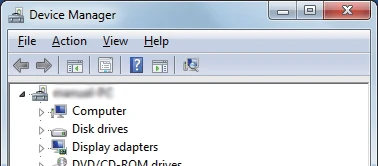
3-1 如何查看每个 COM 端口对应的内部电路3-1 How to check the internal circuit for each COM port
您可以在「Device Manager」中查看每个 COM 端口对应的是哪一路内部电路——USB 1 还是 USB 2。
You can check the corresponding internal circuit, USB 1 or USB 2, for each COM port in the Device Manager.
- 在 Microsoft® Windows® 7 中显示「Device Manager」画面的方法如下。
- 说明可能因操作系统版本或设置而异。详情请参阅 PC 的使用说明书或帮助文件。
1) 点击「Start menu」,然后点击「Control Panel」。
2) 点击「Hardware and Sound」。
3) 在「Device and Printer」组中点击「Device Manager」。 - 点击「Ports (COM & LPT)」的三角标记以展开其内容。
- To display the Device Manager screen with Microsoft® Windows® 7 do the steps below.
- The description may differ according to your OS version or settings. Refer to your PC's instruction manual, or help file for details.
1) Click "Start menu" and then "Control Panel."
2) Click "Hardware and Sound."
3) Click "Device Manager" in "Device and Printer" group. - Click the triangle mark for "Ports (COM & LPT)" to display the contents.
2右击要查看内部电路的那个 COM 端口,选择「Properties」。
• 此时显示「Silicon Labs CP210x USB to UART Bridge (COM✱) Properties」画面。
✱ 为 COM 端口号。
2Right-click the COM port that you want to check the internal circuit, and select "Properties."
• The "Silicon Labs CP210x USB to UART Bridge (COM✱) Properties" screen is displayed.
✱ is the COM port number.
3点击「Details」选项卡。
3Click the "Details" tab.
4点击「Property」,在下拉列表中选择显示的「Device Instance Path」。
4Click "Property" and select the "Device Instance Path" displayed in the drop-down list.
- 若显示内容的末尾是「A」,则该 COM 端口对应 USB 1。
- 若显示内容的末尾是「B」,则该 COM 端口对应 USB 2。
- If the end of the displayed contents is "A," the COM port is for USB 1.
- If the end of the displayed contents is "B," the COM port is for USB 2.
6点击「<Cancel>」关闭「Silicon Labs CP210x USB to UART Bridge (COM✱) Properties」画面。
✱ 为 COM 端口号。
6Click <Cancel> to close the "Silicon Labs CP210x USB to UART Bridge (COM✱) Properties" screen.
✱ is the COM port number.
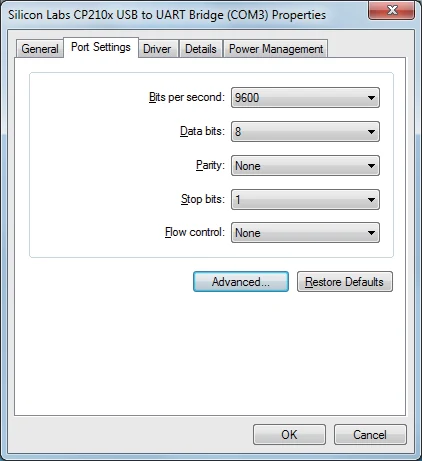
3-2 如何修改 COM 端口号3-2 How to change the COM port number
当软件中无法选择系统自动分配的 COM 端口号时,可以按下面的步骤手动更改 COM 端口号。
You can manually change the COM port number with the following procedures, such as when the automatically assigned COM port number cannot be selected in your software.
- 在 Microsoft® Windows® 7 中显示「Device Manager」画面的方法如下。
- 说明可能因操作系统版本或设置而异。详情请参阅 PC 的使用说明书或帮助文件。
1) 点击「Start menu」,然后点击「Control Panel」。
2) 点击「Hardware and Sound」。
3) 在「Device and Printer」组中点击「Device Manager」。 - 点击「Ports (COM & LPT)」的三角标记以展开其内容。
- To display the Device Manager screen with Microsoft® Windows® 7 do the steps below.
- The description may differ according to your OS version or settings. Refer to your PC's instruction manual, or help file for details.
1) Click "Start menu" and then "Control Panel."
2) Click "Hardware and Sound."
3) Click "Device Manager" in "Device and Printer" group. - Click the triangle mark of "Ports (COM & LPT)" to display the contents.
2右击要更改端口号的那个 COM 端口,选择「Properties」。
• 此时显示「Silicon Labs CP210x USB to UART Bridge (COM✱) Properties」画面。
✱ 为 COM 端口号。
2Right-click the COM port that you want to change the COM port number, and select "Properties."
• The "Silicon Labs CP210x USB to UART Bridge (COM✱) Properties" screen is displayed.
✱ is the COM port number.
3点击「Port Settings」选项卡。
3Click the "Port Settings" tab.
4点击「高级 / Advanced...」。
• 此时显示「Advanced Settings for COM✱」画面。
✱ 为 COM 端口号。
4Click <Advanced...>.
• The "Advanced Settings for COM✱" screen is displayed.
✱ is the COM port number.
5点击「COM Port Number」,从下拉列表中选择需要的号码。
• 已被分配给 PC 上其他设备的 COM 端口号会标为「in use(使用中)」。
5Click "COM Port Number" and select a desired number from the drop-down list.
• The COM port number that has already been assigned to another device on your PC, is marked "in use."
6点击「确定 / OK」完成设置。
• 此时「Advanced Settings for COM✱」画面同时关闭。
✱ 为 COM 端口号。
• 更改 COM 端口号后,可能无法立即使用所选的 COM 端口号。这种情况下,请把 USB 电缆拔下再插回一次;重新连接后即可使用所选的 COM 端口。
6Click <OK> to set.
• The "Advanced Settings for COM✱" screen closes at the same time.
✱ is the COM port number.
• After changing the COM port number, you may not be able to immediately use the selected COM port number. In this case, disconnect the USB cable once, and then reconnect the cable. By reconnecting, you'll be able to use the selected COM port.
图中标注:Click to display the contents(点击以展开内容);Right click the port of the COM port number you want to change(右击要更改端口号的那个 COM 端口);Click(点击);Click then select(点击后选择);Confirm the end character(确认末尾字符)。
Figure labels: Click to display the contents; Right click the port of the COM port number you want to change; Click; Click then select; Confirm the end character.