语音录制功能Voice Recorder Functions
本章介绍 IC-7300 的语音录制功能:快速录制接收音频、录制完整的 QSO(发射与接收音频)、播放录制的文件、查看文件与文件夹信息、删除文件或文件夹,以及查看 SD 卡信息;还说明如何在电脑上播放录制的文件,并详细列出 RECORDER SET 与 PLAYER SET 屏幕的全部设置项及默认值。
This chapter describes the Voice Recorder functions of the IC-7300: quickly recording the receive audio, recording a complete QSO (both transmit and receive audio), playing back recorded files, checking file and folder information, deleting files or folders, and viewing SD Card information. It also explains how to play back recorded files on a PC, and details every setting item and default value on the RECORDER SET and PLAYER SET screens.
6-2录制 QSO 音频Recording a QSO audio
本收发信机内置 QSO 录音机,既可录制接收音频,也可录制发射音频。该功能适合制作通联记录,或复盘与稀有实体电台的通联以及在 DX 远征中的通联,也可用于反复发送同一条消息。
This transceiver is equipped with a QSO recorder not only for the receive audio, but also for the transmit audio. This function is useful to make a QSO record or to confirm your QSO with a rare entity's station or on a DX'pedition. You can also use the function to repeatedly send the same message.
录制的内容保存在 SD 卡上。录制通联共有 2 种方式。
The recorded contents are saved onto an SD card. There are 2 ways to record the communication.
快速录制Quick recording
可快速录制接收音频。
You can quickly record receive audio.
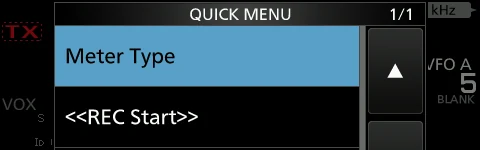
1按 QUICK。打开 QUICK MENU 屏幕。
1Push QUICK. Opens the QUICK MENU screen.
2触摸「<<REC Start>>」。开始录制。短暂显示「Recording started.」。
2Touch <<REC Start>>. Starts recording. "Recording started." is briefly displayed.
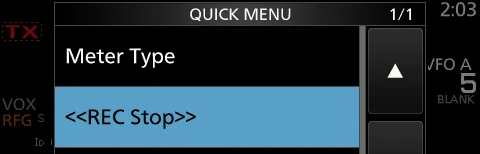
3再次按 QUICK。打开 QUICK MENU 屏幕。
3Push QUICK again. Opens the QUICK MENU screen.
4触摸「<<REC Stop>>」。停止录制。短暂显示「Recording stopped.」。
4Touch <<REC Stop>>. Stops recording. "Recording stopped." is briefly displayed.
火腿经验 HAM TIPHAM TIP
想随手录下通联时,直接按 QUICK 键打开 QUICK MENU,触摸 <<REC Start>> 即可开录;停止时再按一次 QUICK,触摸 <<REC Stop>>。这比逐层翻 MENU » RECORD 快得多,比赛中通联一结束就能立刻复盘。
To record a QSO on the fly, push QUICK to open the QUICK MENU and touch <<REC Start>> — then push QUICK again and touch <<REC Stop>> to stop. This is much faster than digging through MENU » RECORD, so you can review a contact right after it happens in a contest.
基本录制Basic recording
可同时录制接收音频与发射音频。
You can record both receive and transmit audio.
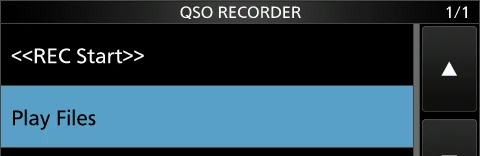
1打开 QSO RECORDER 屏幕。MENU » RECORD
1Open the QSO RECORDER screen. MENU » RECORD
2触摸「<<REC Start>>」。开始录制。短暂显示「Recording started.」。
2Touch <<REC Start>>. Starts recording. "Recording started." is briefly displayed.
3触摸「<<REC Stop>>」。停止录制。短暂显示「Recording stopped.」。
3Touch <<REC Stop>>. Stops recording. "Recording stopped." is briefly displayed.
4要关闭 QSO RECORDER 屏幕,请按 EXIT。停止录制。短暂显示「Recording stopped.」。
4To close the QSO RECORDER screen, push EXIT. Stops recording. "Recording stopped." is briefly displayed.
提示 NOTENOTE
• 录制 QSO 需要 SD 卡(用户自备)。
• 如果 SD 卡中没有「IC-7300」文件夹,请先备份 SD 卡上的数据,将其插入收发信机的卡槽,然后使用内置格式化功能进行格式化。详见「Formatting an SD card」(见 8-3 节)。
• 录制一旦开始,即使关闭再打开收发信机电源,录制也会继续进行。
• 录制会一直持续,直到触摸 <<REC Stop>> 或 SD 卡的剩余空间用完。
• 当录制文件达到 2 GB 时,收发信机将继续录制,但会写入一个新文件。
• To record a QSO, an SD card (user supplied) is required.
• If your SD card does not have an "IC-7300" folder, back up any data on the SD card, insert it in the transceiver's card slot and then format it using the built-in format function. See "Formatting an SD card" (p. 8-3) for details.
• Once the recording starts, it continues, even if the transceiver is turned OFF and ON again.
• The recording continues until you touch <<REC Stop>> or the free space on the SD card has run out.
• When the recording file's content becomes 2 GB, the transceiver continues to record, but to a new file.
提示 TIPTIP
在语音设置(Voice set mode)中将 PTT Automatic Recording 功能设为 ON 时,按 [PTT] 即自动开始录制。(见 6-8 节)
When the PTT Automatic Recording function is set to ON in the Voice set mode, the recording automatically starts when you push [PTT]. (p. 6-8)
提示 TIP:关于录制TIP: About recording
• 录制开始后,SD 卡上会自动创建文件夹和文件。
– 文件夹名格式为 yyyymmdd(yyyy:年,mm:月,dd:日)。
– 文件名格式为 yyyy-mm-dd hh:mm:ss(yyyy:年,mm:月,dd:日,hh:时,mm:分,ss:秒)。
– 同一天录制的音频文件保存在同一文件夹中。
• 录制过程中,录制图标点亮并闪烁。
• 处于待机状态时,录制暂停。
• 暂停期间,▌▌ 闪烁。
• 触摸录制图标时,显示「Stop recording?」。
– 如果触摸 [YES],录制停止,对话框消失。
– 如果触摸 [NO],对话框消失,录制继续。
• 录制停止后,录制图标熄灭。
• After the recording starts, a folder and file are automatically created on the SD card.
– The folder name is formatted yyyymmdd (yyyy: year, mm: month, dd: day).
– The file name is formatted yyyy-mm-dd hh:mm:ss (yyyy: year, mm: month, dd: day, hh: hour, mm: minute, ss: second).
– The audio files recorded on the same day are saved in the same folder.
• While recording, the recording icon is lit and blinks.
• While standing by, the recording pauses.
• While pausing, ▌▌ blinks.
• When you touch the recording icon, "Stop recording?" is displayed.
– If you touch [YES], the recording stops and the dialogue box disappears.
– If you touch [NO], the dialogue box disappears and the recording continues.
• After the recording stops, the recording icon turns OFF.
6-3播放 QSO 音频Playing back a QSO audio
播放时的操作Operation while playing back
可播放录制的 QSO 音频。
You can playback the recorded QSO audio.
1打开 PLAY FILES 屏幕。MENU » RECORD > Play Files显示文件夹列表。
1Open the PLAY FILES screen. MENU » RECORD > Play Files The folder list is displayed.
2触摸保存有要播放文件的文件夹。文件夹按「yyyymmdd」格式命名(yyyy:年,mm:月,dd:日)。
2Touch the folder that the file you want to playback is saved. The folder is named in the following manner, "yyyymmdd" (yyyy: Year, mm: month, dd: day).
3触摸所需文件。开始播放。播放将持续到下一个文件,播放完文件夹中的最后一个文件后停止。
3Touch the desired file. Starts a playback. Playback continues to the next file, and stops when the last file in the folder is played back.
4要关闭 PLAY FILES 屏幕,请按 EXIT 数次。
4To close the PLAY FILES screen, push EXIT several times.
播放时可快进或快退。可在 PLAYER SET 屏幕中更改跳过时间。(默认:10 秒)MENU » RECORD > Player Set > Skip Time
You can fast forward or rewind while playing back. You can change the skip time in the PLAYER SET screen. (Default: 10 seconds) MENU » RECORD > Player Set > Skip Time
说明 NOTENOTE
原书中的播放控制以图标给出。本中英对照版按其在 VOICE PLAYER 屏幕上的功能名称引用,依次为 Forward(快进)、Rewind(快退)、Pause(暂停/播放)、上一个文件、下一个文件。
The playback controls are given as icons in the original manual. In this bilingual edition they are referred to by their function names on the VOICE PLAYER screen: Forward, Rewind, Pause/Play, Previous file and Next file.
播放时快进Fast forward while playing
触摸 Forward(快进)图标,快进到跳过时间点。(默认:10 秒)
Touch the Forward icon to fast forward to the skip time point. (Default: 10 seconds)
播放时快退Rewind while playing
触摸 Rewind(快退)图标,快退到跳过时间点。(默认:10 秒)若在文件开始的 1 秒内触摸 Rewind 图标,上一个录制文件的末尾将被播放。
Touch the Rewind icon to rewind to the skip time point. (Default: 10 seconds) If you touch the Rewind icon within the first 1 second of the file, at the end of the previously recorded file will play back.
播放时暂停Pause while playing
触摸 Pause(暂停)图标。暂停期间显示 ▌▌。要取消暂停,请再次触摸 Pause 图标。
Touch the Pause icon. ▌▌ is displayed while pausing. To cancel the pausing, touch the Pause icon again.
播放上一个文件Playing the previous file
触摸「上一个文件」图标,播放上一个文件。若文件夹中还有其他文件,当正在播放最旧的文件时,触摸「上一个文件」图标可从该文件的开头开始播放。
Touch the previous file icon to play the previous file. If there are other files in the folder, while the oldest file is playing back, touch the previous file icon to start playing the beginning of the file.
播放下一个文件Playing the next file
触摸「下一个文件」图标,播放下一个文件。若文件夹中还有其他文件,当正在播放最新的文件时,触摸「下一个文件」图标可停止播放。
Touch the next file icon to play the next file. If there are other files in the folder, while the most recent file is playing back, touch the next file icon to stop the playback.
移动到上一个文件的开头Moving to the beginning of the previous file
暂停时,触摸「上一个文件」图标,移动到上一个文件的开头。要播放该文件,请触摸播放图标。
While paused, touch the previous file icon to move to the beginning of the previous file. To playback the file, touch the play icon.
移动到下一个文件的开头Moving to the beginning of the next file
暂停时,触摸「下一个文件」图标,移动到下一个文件的开头。要播放该文件,请触摸播放图标。
While paused, touch the next file icon to move to the beginning of the next file. To playback the file, touch the play icon.
6-4查看文件信息Checking the file information
VOICE PLAYER 屏幕VOICE PLAYER screen
本收发信机可显示录制文件的工作频率、工作模式、日期等信息。
The transceiver can display the recorded file's operating frequency, operating mode, date, and so on.
1打开 PLAY FILES 屏幕。MENU » RECORD > Play Files显示文件夹列表。
1Open the PLAY FILES screen. MENU » RECORD > Play Files The folder list is displayed.
2选择包含要播放文件的文件夹。显示文件列表。
2Select a folder that contains the file you want to playback. The file list is displayed.
3触摸所需文件并保持 1 秒。打开 QUICK MENU 屏幕。
3Touch the desired file to check for 1 second. Opens the QUICK MENU screen.
4触摸「File Information」。
4Touch "File Information."
5要关闭 PLAY FILES 屏幕,请按 EXIT 数次。
5To close the PLAY FILES screen, push EXIT several times.
| 屏幕项目Screen item | 说明Description |
|---|---|
| Start Time | 正在播放的文件的录制开始时间。The recording start time of the file being played back. |
| The number of file | 正在播放的文件编号,以及录制文件的总数。The number of the file being played back, and the total number of recorded files. |
| Play the previous file | 播放上一个文件。Plays the previous file. |
| Play the next file | 播放下一个文件。Plays the next file. |
| Touch to pause or playback | 触摸以暂停或播放。Touch to pause or play back. |
| Rewind | 快退。Rewinds the playback. |
| Forward | 快进。Fast forwards the playback. |
| Recording Information | 工作频率、工作模式及音频类型:接收(RX)或发射(TX)。Operating frequency, operating mode, and audio type: Receive (RX) or Transmit (TX). |
| Playback time | 播放已用时间。The playback elapsed time. |
| Playback process | 显示当前播放文件的进度。Displays the progress of the file currently playing back. |
| Playback icon | 播放时显示,暂停时不显示。Displayed while playing back. Not displayed while paused. |
| Total time | 录制文件的总时长。The total time of the recorded file. |
6-5删除文件Deleting a file
可删除录制的音频文件。
You can delete the recorded audio file.
1打开 PLAY FILES 屏幕。MENU » RECORD > Play Files显示文件夹列表。
1Open the PLAY FILES screen. MENU » RECORD > Play Files The folder list is displayed.
2触摸包含要删除文件的文件夹。显示文件列表。
2Touch a folder that contains the file you want to delete. The file list is displayed.
3触摸要删除的文件并保持 1 秒。打开 QUICK MENU 屏幕。
3Touch the desired file to delete for 1 second. Opens the QUICK MENU screen.
4触摸「Delete」。显示「Delete file?」。
4Touch "Delete." "Delete file?" is displayed.
5触摸 [YES]。所选文件被删除。
5Touch [YES]. The selected file is deleted.
6要关闭 PLAY FILES 屏幕,请按 EXIT 数次。
6To close the PLAY FILES screen, push EXIT several times.
删除所有文件Deleting all files
若要一次删除文件夹中的全部音频文件,请在上述步骤 4 中选择「Delete All」。
If you want to delete all audio files in the folder at one time, select "Delete All" in step 4 above.
查看文件夹信息Checking the folder information
本收发信机可显示文件夹的名称、文件夹中的文件数量、文件总容量及日期。
The transceiver can display the folder's name, number of the files in the folder, total capacity of the files and date.
1打开 PLAY FILES 屏幕。MENU » RECORD > Play Files显示文件夹列表。
1Open the PLAY FILES screen. MENU » RECORD > Play Files The folder list is displayed.
2触摸要查看内容的文件夹并保持 1 秒。打开 QUICK MENU 屏幕。
2Touch the desired folder you want to check the contents of for 1 second. Opens the QUICK MENU screen.
3触摸「Folder Information」。
3Touch "Folder Information."
4要关闭 PLAY FILES 屏幕,请按 EXIT 数次。
4To close the PLAY FILES screen, push EXIT several times.
6-6SD 卡信息SD Card information
1打开 SD CARD 屏幕。MENU » SET > SD Card
1Open the SD CARD screen. MENU » SET > SD Card
2选择「SD Card Info」。显示 SD CARD INFO 屏幕。(旋转:选择;按下:进入)
2Select "SD Card Info." The SD CARD INFO screen is displayed. (Rotate: select / Push: enter)
3要关闭 SD CARD 屏幕,请按 EXIT 数次。
3To close the SD CARD screen, push EXIT several times.
删除文件夹Deleting a folder
可删除录制的音频文件夹。
You can delete the recorded audio folders.
提示 NOTENOTE
文件夹中的所有文件也会一并删除。
All the files in the folder are also deleted.
1打开 PLAY FILES 屏幕。MENU » RECORD > Play Files显示文件夹列表。
1Open the PLAY FILES screen. MENU » RECORD > Play Files The folder list is displayed.
2触摸要删除的文件夹并保持 1 秒。打开 QUICK MENU 屏幕。
2Touch the desired folder to delete for 1 second. Opens the QUICK MENU screen.
3触摸「Delete」。显示「Delete folder?」。
3Touch "Delete." "Delete folder?" is displayed.
4触摸 [YES]。所选文件夹被删除。
4Touch [YES]. The selected folder is deleted.
5要关闭 PLAY FILES 屏幕,请按 EXIT 数次。
5To close the PLAY FILES screen, push EXIT several times.
删除所有文件夹Deleting all folders
若要一次删除所有文件夹,请在上述步骤 3 中选择「Delete All Folders」。
If you want to delete all folders at one time, select "Delete All Folders" in step 3 above.
6-7在电脑上播放录制的文件Playing back the recorded file on a PC
也可以在电脑上播放录制的语音数据。此时不会显示录制信息(频率、日期等)。以下以 Microsoft Windows 10 为例进行说明。
You can also playback the voice memory data on a PC. The recorded information (frequency, date, and so on) is not displayed. Microsoft Windows 10 is used for the description below.
1将 SD 卡插入电脑的 SD 卡插槽。如果电脑没有 SD 卡驱动器,请将读卡器(用户自备)连接到电脑,然后将 SD 卡插入读卡器。
1Insert the SD card into your PC's SD card slot. If your PC does not have an SD card drive, connect a memory card reader (user supplied) to the PC, and then insert the SD card into the reader.
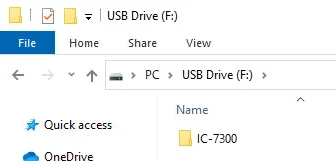
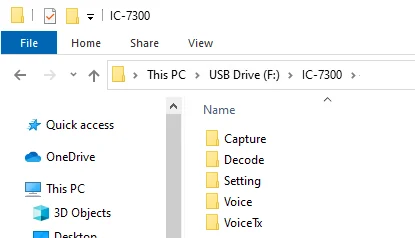
2打开 SD 卡文件夹视图。显示「IC-7300」文件夹。
2Open the SD card folder view. The "IC-7300" folder is displayed.
3双击「IC-7300」文件夹。
3Double-click the "IC-7300" folder.
4双击「Voice」文件夹。
4Double-click the "Voice" folder.
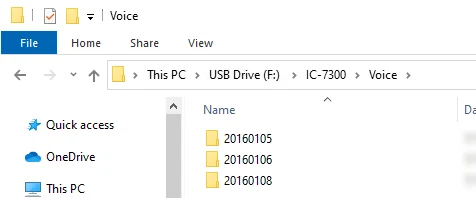
5双击保存有要播放文件的文件夹。(示例:20160106 文件夹)
5Double-click the folder where the file you want to playback is saved. (Example: 20160106 folder)
6双击该文件即可播放。(示例:20160106_120255.wav)
6To playback the file, double-click it. (Example: 20160106_120255.wav)
提示 NOTENOTE
• 播放时的操作可能因应用程序而异,详情请参阅相应应用程序的使用说明书。
• 如果双击文件后仍无法播放,请下载合适的软件(例如 Windows Media® Player)。
• The operations while playing back may differ, depending on the application. Refer to the application's instruction manual for details.
• When the file does not playback, even if you double click the file, download the appropriate software. (Example: Windows Media® Player)
6-8RECORDER SET 屏幕RECORDER SET screen
可更改 RECORDER SET 设置。各设置项的详细说明如下。(示例:设置 REC 模式。)
You can change the RECORDER SET settings. Details on each setting item are described below. (Example: Setting the REC mode.)
1打开 QSO RECORDER 屏幕。MENU » RECORD
1Open the QSO RECORDER screen. MENU » RECORD
2触摸「Recorder Set」。
2Touch "Recorder Set."
3选择「REC Mode」。
3Select "REC Mode".
4选择 REC 模式「TX&RX」或「RX Only」。
4Select the REC mode "TX&RX" or "RX Only."
5要关闭 RECORDER SET 屏幕,请按 EXIT 数次。
5To close the RECORDER SET screen, push EXIT several times.
| 设置项Item | 选项与说明Options and description |
|---|---|
| REC Mode | 选择录制 QSO 音频的录制模式。 • TX&RX:同时录制发射音频与接收音频。 • RX Only:仅录制接收音频。默认:TX&RXSelect the recording mode to record a QSO audio. • TX&RX: Records both the transmitted and received audio. • RX Only: Records only the received audio. (Default: TX&RX) |
| TX REC Audio | 选择要录制的发射音频。 • Direct:录制话筒音频。 • Monitor:录制发射监听音频。默认:DirectSelect the recording audio to transmit. • Direct: Records the microphone audio. • Monitor: Records the TX monitor audio. (Default: Direct) |
| RX REC Condition | 选择接收音频的录制条件。 • Always:即使未收到信号也录制。 • Squelch Auto:仅在静噪打开时录制。录制过程中静噪关闭时,录制将暂停。默认:Squelch AutoSelect the recording condition for receive. • Always: Records even if no signal is received. • Squelch Auto: Records only when the squelch opens. (The recording will be paused when the squelch closes while recording.) (Default: Squelch Auto) |
| File Split | 开启或关闭 File Split 功能。 • OFF:即使在发射与接收之间切换,或静噪状态在打开与关闭之间变化,音频也连续录制到同一文件中。当录制文件大小达到 2 GB 时,收发信机将继续录制,但会写入一个新文件。 • ON:录制过程中,如果在发射与接收之间切换,或静噪状态在打开与关闭之间变化,将在同一文件夹中自动创建一个新文件,音频保存到新文件中。默认:ONTurn the File Split function ON or OFF. • OFF: The audio is continuously recorded into the file even if you switch between transmit and receive or the squelch status changes between open and closed. When the recording file's size becomes 2 GB, the transceiver continues to record, but to a new file. • ON: While recording, and if you switch between transmit and receive, or the squelch status changes between open and closed, a new file is automatically created in the same folder, and the audio is saved into the new one. (Default: ON) |
| PTT Auto REC | 开启或关闭 PTT Automatic Recording 功能。 • OFF:即使发射信号,录制也不会开始。 • ON:发射信号时,录制自动开始。默认:OFFTurn the PTT Automatic Recording function ON or OFF. • OFF: The recording does not start, even if a signal is transmitted. • ON: The recording automatically starts when a signal is transmitted. (Default: OFF) |
| PRE-REC for PTT Auto REC | 选择是否录制 PTT Automatic Recording 功能启动前接收到的音频。 • OFF:不录制该音频。 • 5sec/10sec/15sec:录制在此设定时间内此前接收的音频。默认:10secSelect whether or not record the audio that is received before the PTT Automatic Recording function is activated. • OFF: Does not record the audio. • 5sec/10sec/15sec: Records the audio that is previously received in this set period of time. (Default: 10sec) |
在以下情况下,录制将停止:
• 最后一次发射后 10 秒内没有发射。
• 最后一次发射后 10 分钟内没有信号。
– 如果在最后一次发射后 10 秒内接收到信号,接收到的音频也会被录制。
– 如果在最后一次接收后 10 秒内又接收到信号,接收到的音频也会被录制。
• 在 SSB、CW、RTTY 或 AM 模式下,静噪打开状态持续 10 分钟。
• 频率或工作模式被更改。
• 操作方式(V/M、M-CH、波段堆叠寄存器等)被更改。
The recording will stop when:
• 10 seconds has passed without transmission after the last transmission.
• 10 minutes has passed with no signal after the last transmission.
– If you receive a signal within 10 seconds after the last transmission, the received audio is also recorded.
– If you receive another signal within 10 seconds after the last reception, the received audio is also recorded.
• 10 minutes has passed while operating with the squelch is open in the SSB, CW, RTTY, or AM mode.
• The frequency or operating mode is changed.
• The operating method (V/M, M-CH, Band Stacking Register, and so on) is changed.
提示 TIP:如何恢复默认设置TIP: How to reset to the default setting
触摸设置项或其选项 1 秒,会显示 Quick 菜单,然后触摸「Default」即可恢复默认设置。
Touching the item or its option for 1 second displays the Quick menu, and then touch "Default" to reset to the default setting.
6-9PLAYER SET 屏幕PLAYER SET screen
播放时可快进或快退。可在 PLAYER SET 屏幕中更改跳过时间。
You can fast forward or rewind while playing back. You can change the skip time in the PLAYER SET screen.
1打开 QSO RECORDER 屏幕。MENU » RECORD
1Open the QSO RECORDER screen. MENU » RECORD
2触摸「Player Set」。
2Touch "Player Set."
3选择「Skip Time」。
3Select "Skip Time."
4选择所需选项。可选项:3sec、5sec、10sec 或 30sec。
4Select your desired option. Options: 3sec, 5sec, 10sec, or 30sec.
5要关闭 RECORD 屏幕,请按 EXIT 数次。
5To close the RECORD screen, push EXIT several times.
| 设置项Item | 选项与说明Options and description |
|---|---|
| Skip Time | 选择播放时快进或快退的跳过时间。 可选项:3sec、5sec、10sec 或 30sec。默认:10secSelect the skip time for fast forward or rewind while playing back. Options: 3sec, 5sec, 10sec, or 30sec. (Default: 10 seconds) |
提示 TIP:如何恢复默认设置TIP: How to reset to the default setting
触摸设置项或其选项 1 秒,会显示 Quick 菜单,然后触摸「Default」即可恢复默认设置。
Touching the item or its option for 1 second displays the Quick menu, and then touch "Default" to reset to the default setting.