SD 卡的使用Using an SD Card
本章介绍在 IC-7300 上使用 SD 卡(含 SDHC)的方法:可使用的卡型与容量、插卡与取卡、在电台内格式化、设置数据的保存与加载、删除数据文件、查看 SD 卡信息,以及把卡上数据备份到电脑。升级固件等操作所需的专用文件夹由电台内置的 Format 功能创建,因此新卡必须先在电台中格式化。
This chapter describes how to use an SD card (including SDHC) with the IC-7300: usable card types and capacities, inserting and removing the card, formatting it inside the transceiver, saving and loading the setting data, deleting data files, viewing SD card information, and backing up the card data onto a PC. The special folder needed for operations such as a firmware update is created by the transceiver's built-in Format function, so a new card must be formatted in the transceiver first.
说明 NOTENOTE
除另有说明外,本章步骤中的「旋转」指旋转 MULTI-FUNCTION 旋钮,「按压」指按压该旋钮(原书截图中分别以 Rotate、Push 标注);[YES]、[NO] 等按钮直接用手指在触摸屏上触摸。
Unless otherwise stated, "Rotate" in this chapter means rotate the MULTI-FUNCTION dial and "Push" means push that dial (both are labeled in the original manual's screen shots); touch [YES], [NO] and similar buttons directly on the touch screen.
8-2关于 SD 卡About the SD card
SD 卡与 SDHC 卡不随 Icom 提供,需用户自备。
The SD and SDHC cards are not supplied by Icom. User supplied.
本机可使用容量不超过 2 GB 的 SD 卡,或容量不超过 32 GB 的 SDHC 卡。Icom 已确认下表所列 SD 卡与 SDHC 卡同本机的兼容性。(截至 2024 年 8 月)
You can use an SD card of up to 2 GB, or an SDHC of up to 32 GB. Icom has checked the compatibility with the following SD and SDHC cards. (As of August 2024)
| 品牌Brand | 类型Type | 容量Memory size |
|---|---|---|
| SanDisk® | SD | 2 GB |
| SDHC | 4 GB | |
| SDHC | 8 GB | |
| SDHC | 16 GB | |
| SDHC | 32 GB |
说明 NOTENOTE
① 上表所列并不保证卡的性能。
② 在本文档其余部分,SD 卡与 SDHC 卡统称为「SD 卡」或「本卡」。
① The above list does not guarantee the card's performance.
② Throughout the rest of this document, the SD card and an SDHC card are simply called the SD card or the card.
提示 TIPTIP
Icom 建议将电台的出厂默认数据保存到卡中作为备份。(见 8-4 节)
Icom recommends that you save the transceiver's factory default data for backup. (p. 8-4)
提示 NOTENOTE
• 使用 SD 卡前,请仔细阅读卡附带的使用说明。
• 若进行以下任一操作,卡内数据可能损坏或被删除:
– 卡正在存取时将其从电台中取出。
– 卡正在存取时发生断电,或电源线被断开。
– 卡跌落、受到撞击或振动。
• 请勿触摸卡的触点。
• 电台识别大容量卡需要更长时间。
• 卡长时间连续使用后会发热。
• 卡有一定的寿命,使用很长时间后,可能无法读取或写入数据。当无法读取或写入数据时,说明卡的寿命已尽,此时请更换新卡。建议将重要数据另行制作备份文件保存到电脑。(见 8-8 节)
• 对于因卡数据损坏而造成的任何损失,Icom 概不负责。
• Before using the SD card, thoroughly read the card's instructions.
• If you do any of the following, the card data may be corrupted or deleted:
– You remove the card from the transceiver while the card is being accessed.
– A power failure occurs or the power cable is disconnected while the card is being accessed.
– You drop, impact or vibrate the card.
• Do not touch the contacts of the card.
• The transceiver takes a longer time to recognize a high capacity card.
• The card will get warm if continuously used for a long period of time.
• The card has a certain lifetime, so data reading or writing may not be possible after using it for a long period. When reading or writing data is impossible, the card's lifetime has ended. In that case, use a new one. We recommend you make a separate backup file of the important data onto your PC. (p. 8-8)
• Icom will not be responsible for any damage caused by data corruption of a card.
将数据保存到 SD 卡Saving data onto the SD card
- 电台设置数据
保存在电台中的存储通道与预设存储内容。 - 通联内容
发射与接收的音频。 - 通联记录
通联与接收的历史日志。
- Data settings of the transceiver
Memory channel and Preset memory contents saved in the transceiver. - Communication content
The transmitted and received audio. - Communication log
The communication and receive history log.
- 用于 Voice TX 功能的语音音频
与 Voice TX 功能配合使用的语音音频。 - RTTY 解码日志
发送或接收的 RTTY 解码历史日志。 - 捕获的屏幕截图
- Voice audio for the Voice TX function
Voice audio to use with the Voice TX function. - RTTY decode log
The transmitted or received RTTY decode history log. - Captured screens
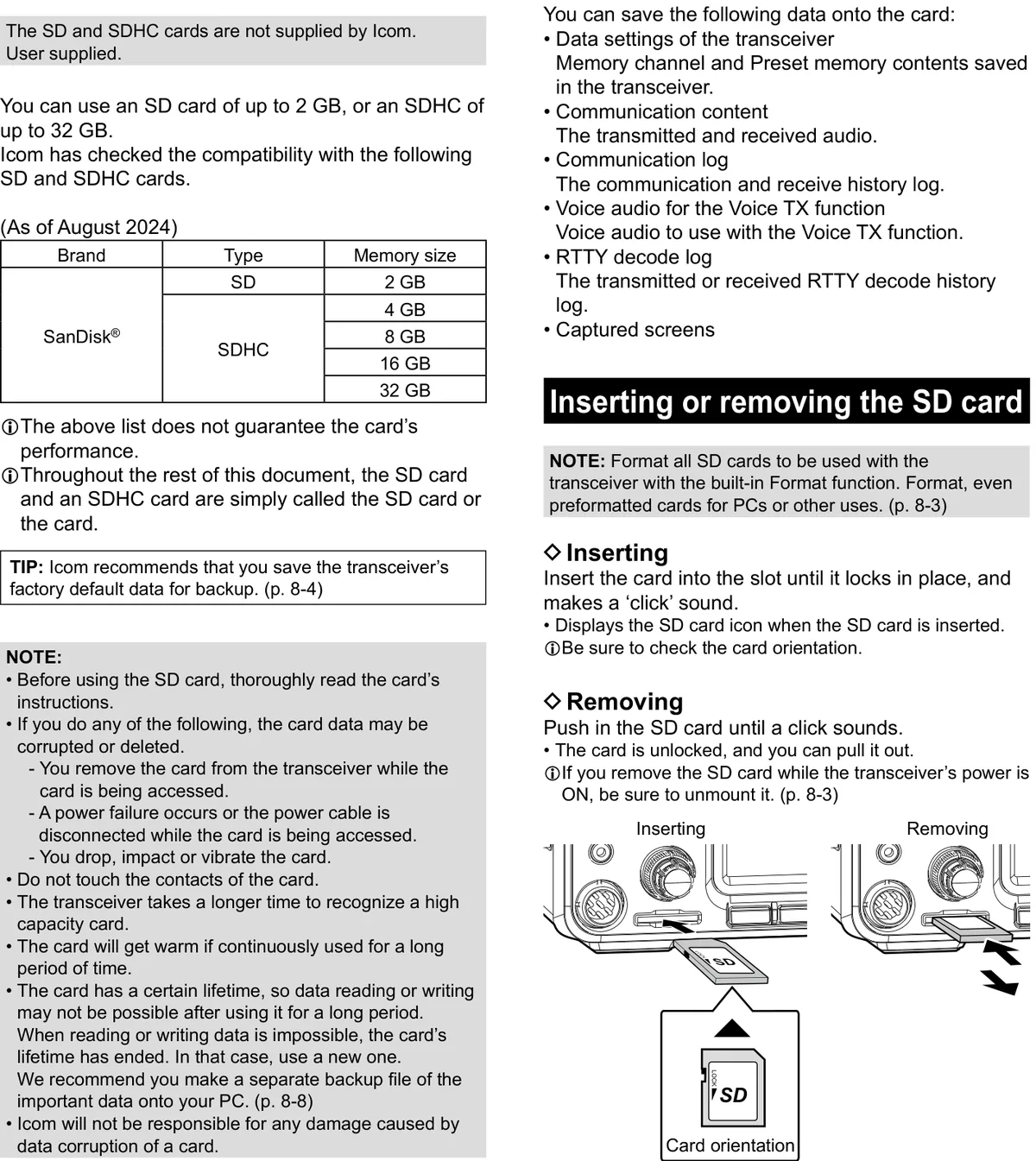
插入或取出 SD 卡Inserting or removing the SD card
插入Inserting
- 插入 SD 卡后,显示 SD 卡图标。
- 务必确认卡的插入方向。
- Displays the SD card icon when the SD card is inserted.
- Be sure to check the card orientation.
取出Removing
- 卡解锁后即可将其拔出。
- 若在电台电源 ON 时取出 SD 卡,务必先将其卸载。(见 8-3 节)
- The card is unlocked, and you can pull it out.
- If you remove the SD card while the transceiver's power is ON, be sure to unmount it. (p. 8-3)
8-3格式化 SD 卡Formatting an SD card
在本收发信机上使用 SD 卡前,务必用内置 Format 功能格式化所有 SD 卡。这会在卡上创建一个专用文件夹,升级固件等操作需要用到该文件夹。
Before using an SD card with the transceiver, be sure to format all SD cards with the built-in Format function. This creates a special folder on the card that you need for operations like updating the firmware.
所有卡都要格式化,包括全新的 SD 卡,乃至为电脑或其他用途而预先格式化过的卡。
Format all cards, including a brand new SD card, and even preformatted cards for PCs or other uses.
提示 NOTENOTE
格式化会擦除卡上的所有数据。格式化任何用过的卡之前,请先将其数据备份到电脑。(见 8-8 节)
Formatting a card erases all its data. Before formatting any used card, back up its data onto your PC. (p. 8-8)
重要 IMPORTANTIMPORTANT
即使格式化了 SD 卡,部分数据仍可能留在卡中。丢弃该卡时,请务必将其物理销毁,以避免残留数据被未经授权地访问。
Even if you format an SD card, some data may remain in the card. When you dispose the card, be sure to physically destroy it to avoid unauthorized access to any data that remains.
1将 SD 卡插入卡槽。
1Insert an SD card into the card slot.
2打开 SD CARD set 屏幕。MENU » SET > SD Card
2Open the SD CARD set screen. MENU » SET > SD Card
3选择「Format」。(旋转:选择;按压:进入)
3Select "Format." (Rotate: select / Push: enter)
4触摸 [YES] 开始格式化。
要取消格式化,请触摸 [NO]。
• 格式化后返回 SD CARD set 屏幕。
4Touch [YES] to start formatting.
To cancel formatting, touch [NO].
• After formatting, returns to the SD CARD set screen.
5要关闭 SET 屏幕,请按 EXIT 数次。
5To close the SET screen, push EXIT several times.
火腿经验 HAM TIPHAM TIP
SD 卡必须在电台内格式化:在 Windows 里格式化的卡,IC-7300 常常不识别;用 MENU » SET > SD Card > Format 格式化最稳。容量支持到 32 GB(SDHC),SDXC 大容量卡不兼容,买卡时注意别买错。
Always format the SD card inside the transceiver: cards formatted in Windows are often not recognized by the IC-7300, while MENU » SET > SD Card > Format is the most reliable. Capacity is supported up to 32 GB (SDHC); high-capacity SDXC cards are not compatible, so don't buy the wrong card.
卸载 SD 卡Unmounting an SD card
说明 NOTENOTE
在电台电源 ON 时取卡前,务必按如下步骤在电台中卸载该卡,否则数据可能损坏或被删除。
Before you remove a card when the transceiver is ON, be sure to electrically unmount it, as shown below. Otherwise the data may be corrupted or deleted.
1打开 SD CARD set 屏幕。MENU » SET > SD Card
1Open the SD CARD set screen. MENU » SET > SD Card
2选择「Unmount」。(旋转:选择;按压:进入)
2Select "Unmount." (Rotate: select / Push: enter)
3触摸 [YES] 执行卸载。
要取消卸载,请触摸 [NO]。
• 卸载后返回 SD CARD set 屏幕。
3Touch [YES] to unmount.
To cancel unmounting, touch [NO].
• After unmounting, returns to the SD CARD set screen.
4要关闭 SET 屏幕,请按 EXIT 数次。
4To close the SET screen, push EXIT several times.
5从电台中取出卡。
5Remove the card from the transceiver.
8-4将设置数据保存到 SD 卡Saving the setting data onto an SD card
可将存储通道与电台的设置保存到卡中。
You can save the Memory channels and the transceiver's settings onto a card.
- 将保存的数据复制到另一台 IC-7300,以相同的设置进行操作。
- 由两人或多人共用一台 IC-7300,各自使用个人的数据。
- Copying the saved data to another IC-7300 to operate with the same data.
- Using one IC-7300 by two or more operators with their own individual data.
1将 SD 卡插入卡槽。
1Insert an SD card into the card slot.
2打开 SAVE SETTING 屏幕。MENU » SET > SD Card > Save Setting
2Open the SAVE SETTING screen. MENU » SET > SD Card > Save Setting
3选择「<<New File>>」。(旋转:选择;按压:进入)
文件名自动设为以下格式:Setyyyymmdd_xx(yyyy:年,mm:月,dd:日,xx:序号)
要更改文件名,请参见「Saving with a different file name」(见 8-5 节)。
3Select "<<New File>>." (Rotate: select / Push: enter)
The file name is automatically set in the following format: Setyyyymmdd_xx (yyyy: Year, mm: month, dd: day, xx: serial number)
If you want to change the file name, see "Saving with a different file name." (p. 8-5)
4触摸 [ENT]。
4Touch [ENT].
5触摸 [YES]。
• 保存设置数据。
保存到卡的过程中,SD 卡图标闪烁;保存完成后返回 SD CARD set 屏幕。
5Touch [YES].
• Saves the data settings.
While saving to the card, the SD card icon blinks. After saving, returns to the SD CARD set screen.
6要关闭 SET 屏幕,请按 EXIT 数次。
6To close the SET screen, push EXIT several times.
提示 TIPTIP
升级电台固件后,SD CARD set 屏幕上会添加「Save Form」项。若该项设为早期固件版本,则在步骤 3 之后会显示确认窗口。若要以早期固件版本格式保存数据,请触摸 [YES]。
After you update the transceiver's firmware, the "Save Form" item will be added on the SD CARD set screen. If this item is set to the earlier firmware version, the confirmation window is displayed after step 3. When you save the data in the earlier firmware version, touch [YES].
以旧固件格式保存Saving in the old firmware format
升级电台固件后,SD CARD set 屏幕上会添加「Save Form」项。用该项可选择将设置数据保存到 SD 卡时所用的固件版本。
After you update the transceiver's firmware, the "Save Form" item will be added on the SD CARD set screen. With this item, you can select the firmware version to save the setting data onto an SD card.
MENU » SET > SD Card > Save Form
MENU » SET > SD Card > Save Form
以早期版本格式保存的设置文件,可写入运行早期固件版本的 IC-7300。
You can write the setting file that is saved in an earlier version to an earlier firmware version IC-7300.
根据电台固件版本的不同,可能不显示该项,此时请以当前版本保存文件。
Depending on the transceiver's firmware version, this item may not be displayed. In that case, save the file in the current version.
固件升级的详情见 15-2 节。
See page 15-2 for details of the firmware update.
提示 NOTENOTE
• 若选择「Old Ver (xxx - xxx)」,固件格式更新时新增的功能将不会被保存。
• 以当前版本格式保存的设置文件,无法加载到运行早期固件版本的 IC-7300。
• If you select "Old Ver (xxx - xxx)," a function that is added when the transceiver's firmware format is updated will not be saved.
• You cannot load a setting file that is saved in the current version format to an earlier firmware version IC-7300.
提示 TIPTIP
要覆盖设置数据,请在步骤 2 中选择所需文件。
To overwrite the setting data, select the desired file in step 2.
火腿经验 HAM TIPHAM TIP
升级固件前,先把电台设置存到 SD 卡(Save Setting)——万一升级失败,还能把设置恢复回来。升级全程勿断市电:用稳压 13.8 V 电源,笔记本用户接满电的电池。
Before a firmware update, save the transceiver's settings to the SD card (Save Setting) — if the update fails, you can restore them. Never lose mains power during the update: use a regulated 13.8 V supply, and laptop users should run on a fully charged battery.
8-5将设置数据保存到 SD 卡(续)Saving the setting data onto an SD card (continued)
以不同的文件名保存Saving with a different file name
文件名最长可改为 15 个字符,可使用大写字母、小写字母、数字、部分符号和空格。
You can change the file name to one of up to 15 characters. You can use upper case letters, lower case letters, numbers, some symbols and spaces.
*不能输入以下符号: / : ; * ? " < > | 若输入这些符号,会显示错误消息,且无法保存文件。
*You cannot enter symbols: / : ; * ? " < > | If you enter those symbols, an error message is displayed and you cannot save the file.
(示例:将文件名改为「My data」。)
(Example: Changing a file name to "My data.")
1打开 SAVE SETTING 屏幕。MENU » SET > SD Card > Save Setting
1Open the SAVE SETTING screen. MENU » SET > SD Card > Save Setting
2选择「<<New File>>」。(旋转:选择;按压:进入)
2Select "<<New File>>." (Rotate: select / Push: enter)
3触摸 [CLR] 删除先前输入的字符。
连续触摸 [CLR] 将删除全部字符。
• 删除光标左侧的字符。
3Touch [CLR] to delete the previously entered character.
If you continuously touch [CLR], all the characters are deleted.
• The character to the left of the cursor is deleted.
4触摸键盘输入所需名称,然后触摸 [ENT]。
详情见「Keyboard entering and editing」(见 1-9 节)。
4Touch the keyboard to enter a desired name, and then touch [ENT].
See "Keyboard entering and editing" (p. 1-9) for details.
5触摸 [YES]。
• 保存设置数据。
保存过程中,SD 卡图标闪烁;保存完成后自动返回 SD CARD set 屏幕。
5Touch [YES].
• Saves the data settings.
While saving, the SD card icon blinks. After saving, automatically returns to the SD CARD set screen.
6要关闭 SET 屏幕,请按 EXIT 数次。
6To close the SET screen, push EXIT several times.
8-6加载 SD 卡中保存的数据文件Loading the saved data files onto an SD card
可将存储通道与电台设置从卡加载到电台。
You can load the Memory channels and transceiver's settings from the card to the transceiver.
- 将保存的数据复制到另一台 IC-7300,以相同的设置进行操作。
- 由两人或多人共用一台 IC-7300,各自使用个人的数据。
- Copying the saved data to another IC-7300 to operate with the same data.
- Using one IC-7300 by two or more operators with their own individual data.
电台提供「ALL」与「Select」两种加载选项供选择。
The transceiver has "ALL" and "Select" loading options to choose from.
提示 TIPTIP
将其他数据加载到电台前,建议先保存当前数据。
Saving the current data is recommended before loading other data into the transceiver.
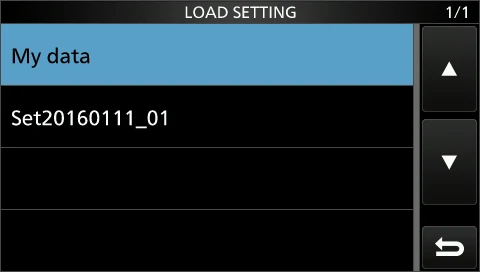
- 1打开 LOAD SETTING 屏幕。MENU » SET > SD Card > Load Setting
- 2选择要加载的文件。(旋转:选择;按压:进入)
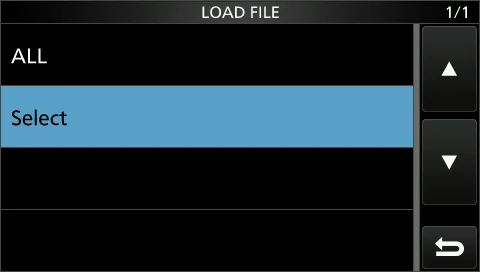
- 3选择「Select」。
- 4触摸所需的加载选项。
• 所选选项的左侧显示「✓」。
SET 模式设置与存储通道内容总会加载。 - 5触摸「<<Load>>」。
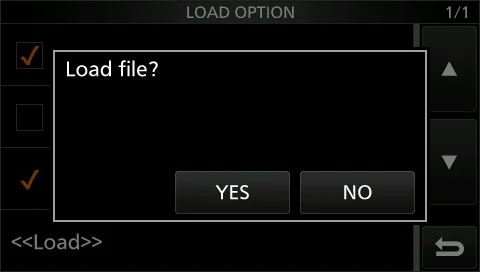
- 6触摸 [YES]。
• 开始检查文件。
检查文件期间显示「Checking the file.」与进度条。若在步骤 4 中选择了「REF Adjust」,会显示「The new "REF Adjust" setting will be saved」。 - 7检查完成后,开始加载文件。
• 加载期间显示「LOADING」与进度条。 - 8加载完成后,显示「Restart the IC-7300」。
关闭电台电源后再重新开机,重启电台。
- 1Open the LOAD SETTING screen. MENU » SET > SD Card > Load Setting
- 2Select the desired file to be loaded. (Rotate: select / Push: enter)
- 3Select "Select."
- 4Touch the desired loading option.
• "✓" is displayed left side of the selected option.
The Set mode settings and Memory channel contents are always loaded. - 5Touch "<<Load>>."
- 6Touch [YES].
• Starts the file check.
While checking the file, "Checking the file." and a progress bar are displayed. When you select "REF Adjust" in step 4, "The new "REF Adjust" setting will be saved" is displayed. - 7After checking, the file loading starts.
• While loading, "LOADING" and a progress bar are displayed. - 8After loading ends, "Restart the IC-7300" is displayed.
Turn the transceiver power OFF, then ON again to restart the transceiver.
提示 TIPTIP
在步骤 3 中选择「ALL」时,将加载以下内容:
• CI-V Address
• SET 模式中「REF Adjust」项的设置
• SET 模式设置与存储通道内容
When you select "ALL" in step 3, the following contents are loaded.
• CI-V Address
• Setting of the "REF Adjust" item in the Set mode.
• Set mode settings and Memory channel contents
8-7删除数据文件Deleting a data file
删除不需要的数据文件,可缩短电台识别 SD 卡所需的时间。
Deleting an unnecessary data file shortens the period of time needed to recognize the SD card.
提示 NOTENOTE
从卡中删除的数据无法恢复。删除任何数据前,请先将卡上数据备份到电脑。
Deleted data from a card cannot be recalled. Before deleting any data, back up the card data onto your PC.
1打开 SAVE SETTING 屏幕。MENU » SET > SD Card > Save Setting
1Open the SAVE SETTING screen. MENU » SET > SD Card > Save Setting
2触摸要删除的文件并保持 1 秒。(旋转:滚动列表)
2Touch the desired file to be deleted for 1 second. (Rotate: scroll the list)
3触摸「Delete」。
要删除全部文件,请触摸「Delete All」。
要取消删除,请按 EXIT。
• 打开确认窗口。
3Touch "Delete."
To delete all files, touch "Delete All."
To cancel deleting, push EXIT.
• Opens the confirmation window.
4触摸 [YES]。
• 删除所选文件。
删除后返回 SAVE SETTING 屏幕。
4Touch [YES].
• Deletes the selected file.
After deleting, returns to the SAVE SETTING screen.
5要关闭 SET 屏幕,请按 EXIT 数次。
5To close the SET screen, push EXIT several times.
显示信息Displaying the information
可显示 SD 卡的容量与语音录制的剩余时间。
You can display the SD card capacity and the time remaining for voice recording.
1打开 SD CARD set 屏幕。MENU » SET > SD Card
1Open the SD CARD set screen. MENU » SET > SD Card
2选择「SD Card Info」。(旋转:选择;按压:进入)
• 打开 SD CARD INFO 屏幕。
2Select "SD Card Info." (Rotate: select / Push: enter)
• Opens the SD CARD INFO screen.
3要关闭 SET 屏幕,请按 EXIT 数次。
3To close the SET screen, push EXIT several times.
8-8将 SD 卡上保存的数据备份到电脑Backing up the data saved on the SD card onto a PC
即使 SD 卡中的设置数据被意外删除,也可借助备份文件轻松恢复数据。
You can easily restore data with a backup file even if the setting data in the SD card is accidentally deleted.
关于 SD 卡的文件夹结构About the SD card's folder contents
SD 卡中的文件夹包含以下内容:
The folder in the SD card contains the following:
| 文件夹Folder | 内容Contents |
|---|---|
| 1. IC-7300 | 电台创建的文件夹均包含在此文件夹中。The folders created in the IC-7300 are contained in this folder. |
| 2. Capture | 屏幕捕获数据以「png」或「bmp」格式保存。The captured screen data is saved in the 'png' or 'bmp' format. |
| 3. Decode | 创建 RTTY 解码日志文件夹。The RTTY decode log folder is created. |
| 4. RTTY | 发送或接收的 RTTY 解码日志数据以「txt」格式保存*。The transmitted or received RTTY decode log data is saved in the 'txt' format*. |
| 5. Setting | 电台设置数据以「dat」格式保存。The transceiver's setting data is saved in the 'dat' format. |
| 6. Voice | 创建录制的 QSO 音频日期文件夹。The recorded QSO audio date folders are created. |
| 7. yyyymmdd | 录制的音频文件以「wav」格式保存。文件夹名按以下格式自动创建:yyyymmdd(yyyy:年,mm:月,dd:日)。Recorded audio files are saved in the 'wav' format. The folder name is automatically created in the following format: yyyymmdd (yyyy:Year, mm:month, dd:day) |
| 8. VoiceTx | Voice TX 功能录制的语音音频数据以「wav」格式保存。Recorded voice audio data for the Voice TX function is saved in the 'wav' format. |
说明 NOTENOTE
* 可在 RTTY DECODE LOG SET 屏幕中把文件格式改为「html」。(见 4-27 节)
* You can change the file format to 'html' in the RTTY DECODE LOG SET screen. (p. 4-27)
(示例:选择设置数据)
(Example: Selecting the setting data)
电脑读取 SD 卡数据时,会显示如下画面。
When the PC reads the SD card data, the screens shown below are displayed.
双击 » 双击 » 设置数据
Double-click » Double-click » The setting data
8-9将 SD 卡上保存的数据备份到电脑(续)Backing up the data saved on the SD card onto a PC (continued)
在电脑上制作备份文件Making a backup file on your PC
以下说明以 Windows 10 为例。
Windows 10 is used for these instructions.
1将 SD 卡插入电脑的 SD 卡驱动器或读卡器*。
*用户自备。
1Insert the SD card into the SD card drive or a memory card reader* on your PC.
*User supplied.
2单击 SD 卡驱动器。
• 显示 IC-7300 文件夹。
2Click the SD card drive
• Displays the IC-7300 folder.
3右键单击「USB drive」,然后单击「Copy」。
3Right-click "USB drive," and then click "Copy."
4打开要存放备份文件的文件夹,在该文件夹中右键单击,然后单击「Paste」。
• 复制的 SD 卡数据将粘贴到硬盘中。
(示例:粘贴到 C 盘的「Backup」文件夹)
4Open the desired folder to make a backup file, and then, right-click on the folder. Then, click "Paste."
• Pastes the copied SD card data onto the hard disk.
(Example: Pasting into the "Backup" folder in the C drive)
5从电脑中取出 SD 卡前,务必安全移除硬件。
屏幕截图所示为插入读卡器时的情况。
5When removing the SD card from your PC, be sure to safety remove it.
The screen shot shows when a memory card reader is inserted.
6显示「Safe To Remove Hardware」后,从电脑中取出 SD 卡。
6After "Safe To Remove Hardware" is displayed, remove the SD card from your PC.